Annoyed by RDP warnings? Get rid of them - with signed RDP files!
 Krähe mit Hut
Remote access to Windows systems is typically achieved via a Remote Desktop connection. No special configuration is required for this (apart from file shares).
However, RDP files are considered insecure by default, as there is no way to verify their origin. For this reason, Windows displays a warning when such a file is opened. This warning was even expanded with the April 2026 updates. While these warnings can be suppressed, it is better to mark such files as trustworthy and to allow only trusted RDP files.
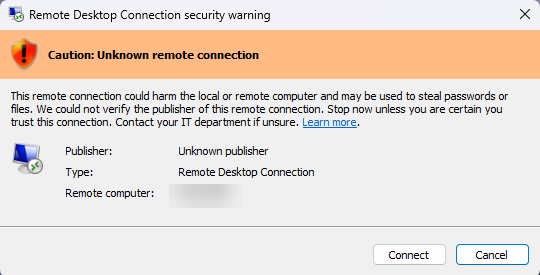
How does that work? This article will show you!
Prerequisites
To ensure that RDP files are used only in a trusted format, the following prerequisites must be met:
- A code-signing certificate is required. This can either be generated internally or obtained from an internal or public certification authority (public CAs incur a fee of approximately €299).
- The necessary settings can be configured via Group Policy. Configuration via alternative solutions, such as Intune, is also possible.
Code signing certificate
You can read about what a code-signing certificate is and how to use it in another post: Run scripts with confidence - using code signing certificates! If you want to use a self-signed certificate for this, you can use a PowerShell script from my script nest.
The certificate must be distributed to all systems on which it is to be classified as trusted. You can also find out how this works via Group Policy in the article Run scripts with confidence - using code signing certificates!
Configuration
The following chapters describe the necessary steps to sign RDP files and thus increase the security of their use.
Sign RDP file(s)
The command-line tool rdpsign is available in Windows for signing RDP files. This requires the fingerprint of the code-signing certificate, which can be obtained as follows:
- Double-click to open the certificate file
- Go to the “Details” tab, select the “Fingerprint” field, and copy the fingerprint from the field below
The signing can then be performed as follows:
rdpsign <Path\to\RDP file>.rdp /sha256 <certificate thumbprint>Central provision and management
Unless this is already the practice, RDP files should not be distributed directly to users. Users could modify them on their own and thereby apply unwanted settings. It is better to create and maintain an RDP file centrally and simply provide users with a shortcut.
The NETLOGON directory is ideal for central deployment. A subfolder (e.g., “RDS”) can be created there if multiple RDP files need to be managed centrally.
Although you can also create shortcuts directly via Group Policy settings, I prefer to create them manually. This shortcut should then be assigned an alternative icon to make it more recognizable for both users and administrators.
The shortcut can then be distributed to all users via a Group Policy object:
User configuration > settings > Windows settings > Files
- Source file(s): <Select shortcut from NETLOGON directory>; use \\<domain>\NETLOGON\... as the path, NOT \\<server name>\NETLOGON\...
- Target file(s): %USERPROFILE%\Desktop\<name of the RDP file>.rdp
Note: If the user is using the redirect for known folders in OneDrive, this path is not available. In this case, a different variable must be used:
- %ONEDRIVECOMMERCIAL%: Microsoft 365-based OneDrive accounts
- %ONEDRIVECONSUMER%: personal OneDrive accounts
Configure trusted RDP publisher
Even if an RDP file is signed, a warning will still be displayed that must be manually acknowledged.
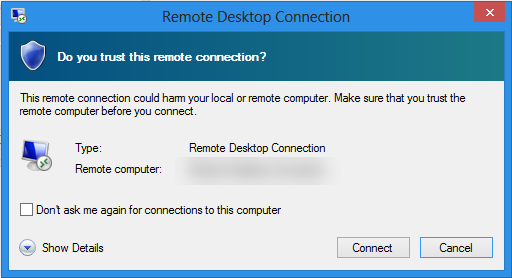
To resolve this, the certificate fingerprint must be configured as trusted in the Remote Desktop client. This can be done as follows:
- Create new GPO (user configuration -> disabled)
Computer Configuration > Policies > Administrative Templates > Windows Components > Remote Desktop Services > Remote Desktop Connection Client
- Allow RDP files from unknown publishers: Disabled
- Specify SHA1 fingerprints for certificates, …: Enabled, enter the fingerprint of the code-signing certificate
The policy must be deployed so that all endpoints receive it.
IMPORTANT: This policy also ensures that unsigned RDP files can no longer be executed! Users must therefore be informed as soon as possible that only the new file can be used.
Liked this article? Share it!