Entra Connect Sync - OU- or attribute-based?
 Krähe mit Hut
Many organizations use Active Directory for centralized user management within their IT infrastructure. When such a company introduces Microsoft 365, the question eventually arises as to whether and how objects from Active Directory should be synchronized with Entra ID (it is now possible to manage identities in the cloud, i.e., only in Entra ID. However, this will be discussed in another article).
The advantages of synchronization are obvious:
- Active Directory continues to serve as the central basis for all objects.
- A single sign-on can be used to log in to Microsoft 365 (and Azure) services.
Methods
OU-based synchronization
By default, Microsoft Entra Connect Sync (MECS) uses organizational unit-based synchronization. Here, the OUs to be synchronized in Active Directory are selected within the Entra Connect configuration wizard. All objects (type: user, group, contact, computer) located in the OU(s) are synchronized according to Entra ID.
Attribute-based synchronization
Regardless of the synchronization type, MECS always uses synchronization rules to determine which objects and attributes are synchronized according to Entra ID. These rules can be supplemented as needed using the Synchronization Rule Editor (the default rules must not be modified; changes would be overwritten each time ECS is updated).
This makes it possible to filter objects based on a specific attribute and synchronize only those objects to Entra ID.
Comparison
Both methods have advantages and disadvantages. These are described in the following table:
| OU-based | Attribute-based | |
|---|---|---|
| Advantage(s) | - Objects are included directly in synchronization - Easier to use | - Objects do not have to be located in a specific OU, but can be synchronized flexibly - Objects cannot be synchronized accidentally (e.g., AD system groups and users) |
| Disadvantage(s) | - Additional OUs required if individual objects are not to be synchronized - Adjustment of the MECS configuration required if additional OUs are to be synchronized | - Additional customization required for objects (setting the attribute, e.g., via script) - Synchronization rules could be lost during an update - Not available when using the cloud synchronization agent |
Conclusion
In terms of flexible controllability independent of the OU structure, attribute-based synchronization is preferable. Moreover, this approach contributes to the principle of centralized administration, as changes only need to be made in Active Directory (and not additionally in group policies and MECS, if applicable).
Ideally, the provision of new objects in AD is already automated, so that the necessary attribute can simply be added there. Otherwise, an automatic script can be implemented that sets the sync attribute for objects that are not created by script (e.g., computer accounts).
This can also be a first step toward developing automation for onboarding and offboarding processes.
Setting up attribute-based synchronization
Choose the variant
The standard synchronization rules already include a way to filter objects based on the adminDescription attribute. However, the following points should be noted:
- The standard rules only allow filtering of users and groups using this attribute. Rules for computers and contacts, for example, do not offer this filtering option (even though the AD objects themselves have this attribute).
- This method represents a blacklisting approach – objects that should NOT be synchronized are marked with this attribute.
For this reason, another variant is described below, which also allows the filtering of computers and contacts and follows the whitelisting approach (the objects to be synchronized are configured).
Notes before implementation
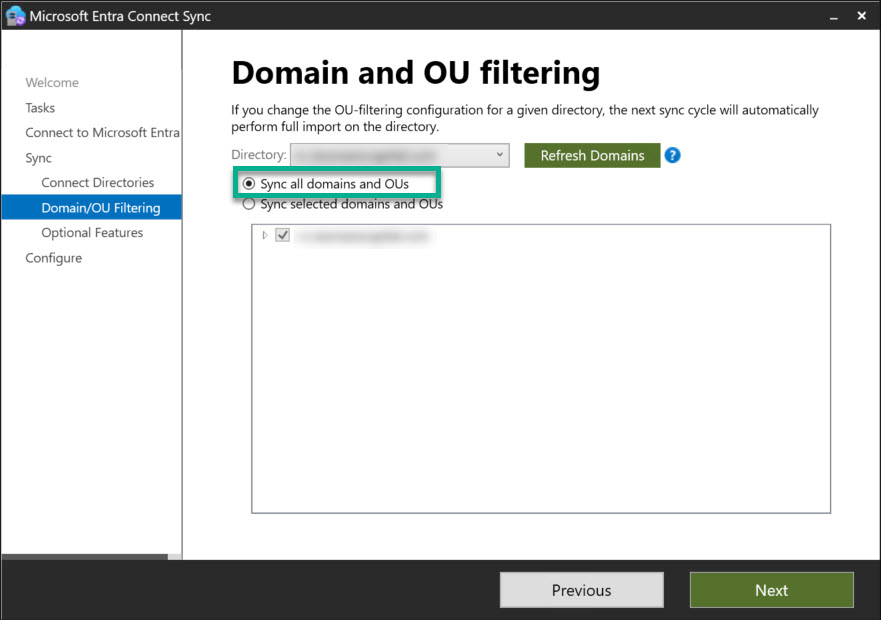
If MECS is being set up for the first time, you must select the option to synchronize all organizational units during setup (picture 1).
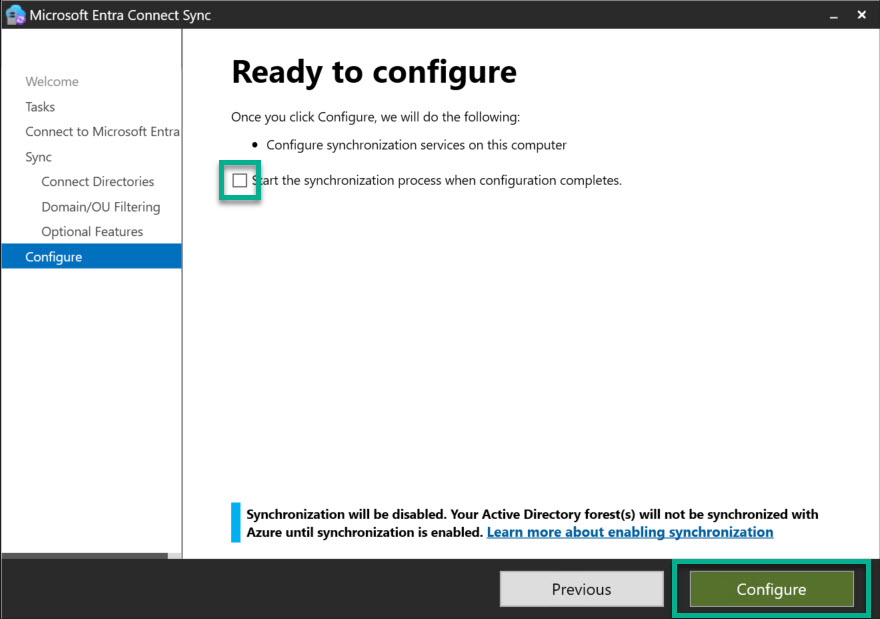
Once setup is complete, synchronization must first be deactivated, otherwise all objects would be synchronized immediately (picture 2).
If attribute-based synchronization is introduced retrospectively in an environment, the selected attribute must be set BEFORE creating the rules for all objects that have already been synchronized. Otherwise, objects without a set attribute will be removed from synchronization.
Procedure
In summary, the following steps must be taken:
- Add the synchronization attribute to all objects to be synchronized/synchronized (users, computers, contacts, groups)
- Set up additional synchronization rules
- Function test
Add the synchronization attribute
An attribute that is not currently in use and ideally will not be used in the future should be selected as the synchronization attribute. If a local Exchange Server is or was used, one of the Exchange extension attributes is suitable for this purpose. This must be filled with a traceable value, e.g., EntraSync or MSCloud. If a large number of objects need to be configured, PowerShell should be used for this purpose. The Active Directory PowerShell module must be installed on the system for this.
The procedure varies slightly depending on whether synchronization is already in use or not:
New installation, no existing synchronization
The script gets all objects in a specific organizational unit and configures the chosen attribute with the specified value.
# Set search path for objects to be synchronized - example, modify to match organization settings
$OUPath = 'OU=<Name der OU>,...,DC=CONTOSO,DC=COM'

# Set attribute value
$Attribute = 'EntraSync'

# Get all objects to be synchronized and set attribute - i.e, extensionAttribute1
Get-ADObject -SearchBase $OUPath -Filter * -Properties DistinguishedName | ForEach {Set-ADObject -Identity $_.DistinguishedName -Add @{extensionAttribute1=$Attribute}}Subsequent adjustment of synchronization
The script gets all objects for which the attribute ms-DS-ConsistencyGuid has been set (as this attribute is configured by MECS by default) and configures the chosen attribute with the specified value.
# Set attribute value
$Attribute = 'EntraSync'

# Get all objects which are already synchronized and set attribute - i.e., extensionAttribute1
Get-ADObject -Filter 'ms-DS-ConsistencyGuid -ne "$Null"' | Set-ADObject -Identity $_.DistinguishedName -Add @{extensionAttribute1=$Attribute}Configure the additional synchronization rules
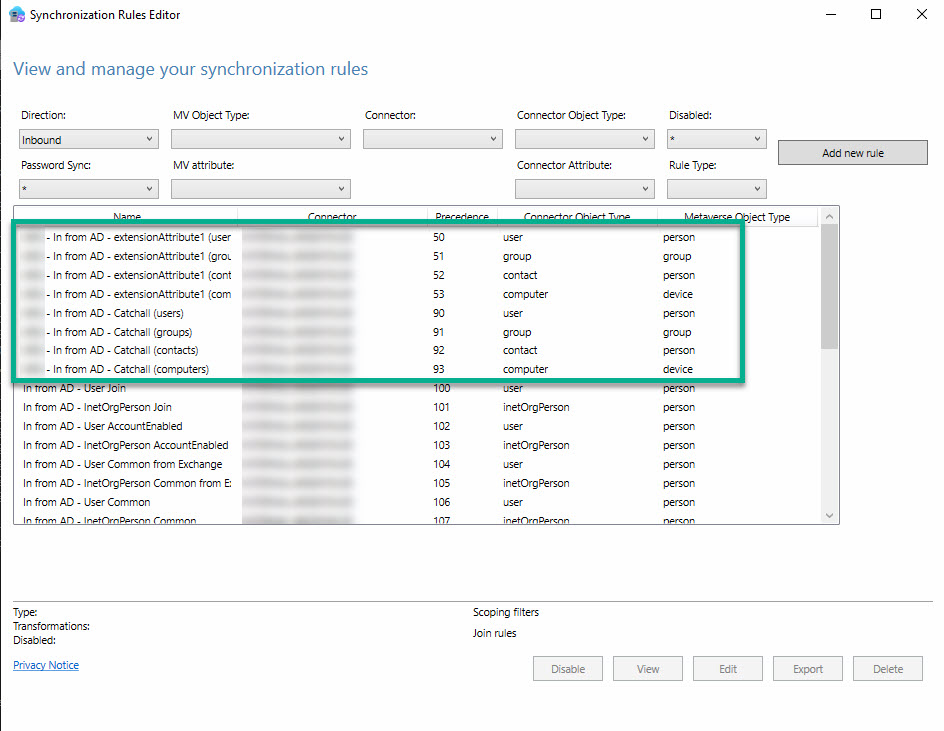
The synchronization rules for MECS can then be extended. A PowerShell script should also be used here. An example can be downloaded from my script nest. The PowerShell script performs the following steps:
- Query for the company code (so that the rules can be clearly assigned)
- Query for the attribute to be used (predefined list, which can be expanded as required)
- Value/content of the attribute
- Creation of rules in the Synchronization Rules Editor
The following rules are created based on the entries:
- One synchronization rule per object type (user, group, contact, computer)
- One filter rule per object type (user, group, contact, computer; filters out all objects for which the attribute is not set)
Functional tests
After making the changes, it is advisable to test them. The steps for doing this vary depending on whether MECS has been newly set up or subsequently modified.
New installation, no existing synchronization
During the installation of MECS, initial synchronization was disabled. This must now be enabled:
# Enable Entra synchronization
Set-AdSyncScheduler -SyncCycleEnabled:$trueSynchronization will then start automatically. If everything has been configured correctly, only those objects for which the synchronization attribute has been set should be found in the Entra Admin Center.
Subsequent adjustment of synchronization
If the synchronization attribute was activated retrospectively, the threshold value for deletions should first be reduced. The default value is 500 objects. If everything has been configured correctly, there should be no deletions. In the event of a configuration error, reducing the threshold value prevents objects from being accidentally deleted and users from being affected.
# Provide user with role 'Hybrid Identity Administrator' or higher
$AADUserName = Read-Host 'Bitte Benutzerkonto mit den notwendigen Berechtigungen angeben'

# Lower threshold for object deletions
Enable-ADSyncExportDeletionThreshold -DeletionThreshold 5 -AADUserName $AADUserName

# Execute synchronization
Start-ADSyncSyncCycle -PolicyType DeltaIn the Synchronization Service, you must then check whether all objects are still synchronized or whether there have been any (unplanned) deletions. In the latter case, the configuration must be checked again. If there are no deletions, the threshold value can be increased again if necessary using the same command as shown above.
Liked this article? Share it!