Hide Teams presence status to external contacts
 Krähe mit Hut
Numerous guides and tools are now available for effectively securing a Microsoft 365 environment. This applies to both security aspects and compliance requirements.
One often overlooked feature is the presence status.
What is the presence status?
The presence status (also "availability status") is a feature that indicates to other people whether you are currently available or not. To better differentiate between these options, users can select from various choices:
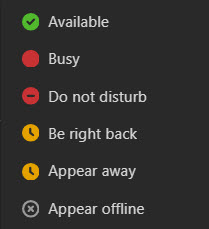
This allows another person to better assess whether contacting someone is advisable or whether it would be better to wait until a later time.
Who can see the presence status?
By default, the presence status is displayed to both internal colleagues and external contacts. While this is usually unproblematic internally, it can pose a problem externally depending on company policies or compliance requirements.
Which options exist to restrict visibility?
Currently, the visibility of the presence status can only be restricted globally. It is not possible to control the visibility depending on specific external domains or to allow it only for certain users.
There is a question regarding this topic in the Microsoft Learn platform. While it is suggested here that individual settings are possible, the specified commands and parameters do not actually exist.
How does it work?
Unfortunately, configuration is currently only possible via PowerShell. Furthermore, the configuration is not officially documented. According to the documentation, the corresponding command is only available in Skype for Business Server (i.e., a local application).
For all subsequent steps, the PowerShell module must first be installed and a connection established.
# Check if the module is installed and install, if not
if (!(Get-InstalledModule MicrosoftTeams -ErrorAction SilentlyContinue)){Install-Module MicrosoftTeams -Scope CurrentUser}

# Connect to Micosoft Teams
Connect-MicrosoftTeams

# Disable visibility globally
Set-CsPrivacyConfiguration -Identity Global -EnablePrivacyMode $true

# Check configuration
Get-CsPrivacyConfiguration -Identity GlobalIt may take some time for the configuration to take effect. Afterwards, external contacts should no longer be able to see a user's availability status. This will now be permanently displayed as "Offline".
Liked this article? Share it!