
Pay-as-you-go services in Microsoft 365 - Options and Setup
 Krähe mit Hut
Microsoft 365 services are typically licensed on a per-user basis. If an employee is to be able to use certain features, they must be assigned a corresponding license. In contrast to traditional local infrastructures, this approach essentially prevents under-licensing. On the other hand, over-licensing can be quickly identified and avoided.
However, there are some services and features that are not licensed on a per-user basis but are billed based on how they are used. To use such services, a so-called Azure subscription must be set up for billing purposes.
What is an Azure subscription?
An Azure subscription is essentially a “shell” for the provision of usage-based services. Accordingly, it uses flexible payment methods such as invoices or credit cards. It also forms the basis for the provision of services in the Microsoft Azure infrastructure platform (e.g., virtual machines, web servers, container solutions, etc.). However, this will not be discussed further here.
Microsoft 365 services use such an Azure subscription to bill for the use of services that are not included in user licenses.
An Azure subscription itself is free of charge and can therefore be provided at any time without any problems. Only the use of services generates costs.
Pay-as-you-go services
Microsoft 365 already offers a number of pay-as-you-go services. These fall into the following categories:
| Category | Services (examples) |
|---|---|
| Document processing services | Document translation, electronic signature, OCR, picture tagging |
| Storage services | Microsoft 365 Archive, archive for unlicensed OneDrive accounts |
| Video services | Video translation |
| Apps | SharePoint Embedded |
In addition, other services with usage-based billing are available, such as Microsoft 365 Backup and Microsoft 365 Copilot.Prices for individual features vary depending on their complexity. The following articles provide an overview of the pricing:
- General services according to table: Pay-as-you-go pricing for document processing for Microsoft 365 | Microsoft Learn
- Microsoft 365 Backup: Pricing model for Microsoft 365 Backup | Microsoft Learn
- Microsoft 365 Copilot: Meters for Microsoft 365 Copilot pay-as-you-go for IT admins | Microsoft Learn
Setting up usage-based payment
To use these services, an Azure subscription must be added. The procedure for this differs depending on whether the company obtains licenses directly from Microsoft or through a partner. The payment method also varies.
Source selection
| Source | Payment method |
|---|---|
| Microsoft | Credit card |
| Microsoft partner (so-called "Cloud Solution Provider") | Individual, usually invoice |
The choice of option depends on the company's requirements. Functionally, there are no differences between the subscriptions.
Recommendation: Azure subscriptions should be purchased through a partner. Microsoft does not offer discounts on services provided, but partners can offer discounts.
It is also possible to transfer Azure subscriptions to another partner. However, subscriptions purchased from Microsoft cannot be transferred to a partner. In such cases, all resources must be migrated to a new subscription provided by the partner, which can be a complex process.
Provisioning the subscription
If Microsoft 365 licenses are already purchased through a partner, an Azure subscription can be requested in the same way (e.g., through a contact person or an end customer portal).
Important: Ask the partner whether cost management with provisioning is activated or not. By default, this is not the case, so there is no insight into cost development in the Azure portal. However, this can be activated by the partner at any time.
If the subscription is to be purchased directly from Microsoft, it can be added as follows:
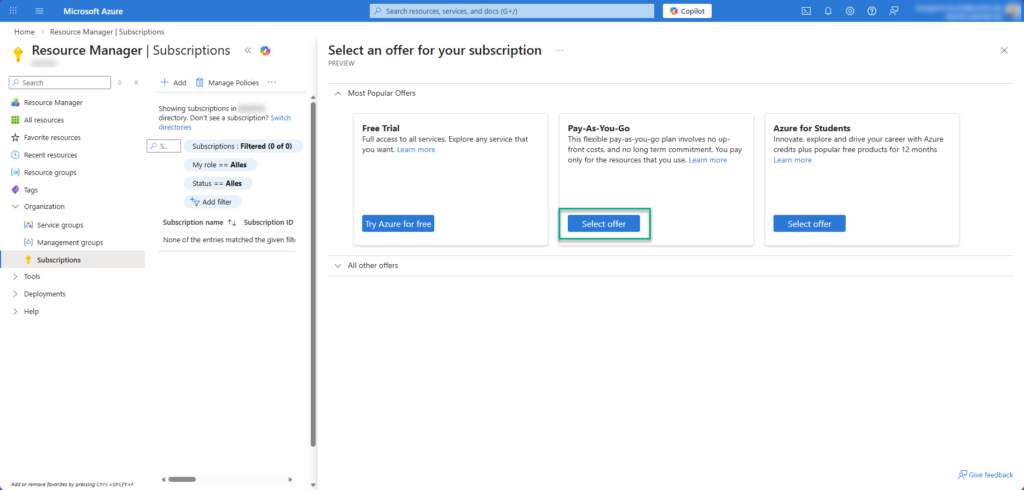
- Open the “Subscriptions” section in the Azure portal: Resource Manager - Microsoft Azure
- Click on “Add” at the top and select the “Choose an offer” button from the menu in the “Pay-as-you-go” tile.
A new page will then open, asking for some information. Please enter this information as requested. In step 3, you must enter a credit card. No other payment methods are accepted!
Once you have completed the wizard, your subscription will be active.
Create a resource group
To assign usage-based Microsoft 365 services to the Azure subscription, you need to create a resource group. This is essentially a folder in which all components of a service are stored. A resource group is comparable to a document folder in this respect.
To do this, proceed as follows:
- Open the new Azure subscription (e.g., via the subscription view)
- In the navigation bar on the left, switch to “Resource Groups.”
- On the right, click “+ Create.”
- Select the following options in the wizard
- Resource group name = <choose any name, e.g., "M365-PAYG">
- Region = <region closest to the Microsoft 365 region, e.g., “(Europe) Germany West Central” for Germany>
- “Review and create”
- “Create”
The resource group should be created immediately. This completes the preparatory steps in Azure.
Activation
Finally, billing can be set up via the new Azure subscription. Important: This will not incur any costs initially! Costs will only arise when one of the services is activated and users begin using it, as outlined above.
General services
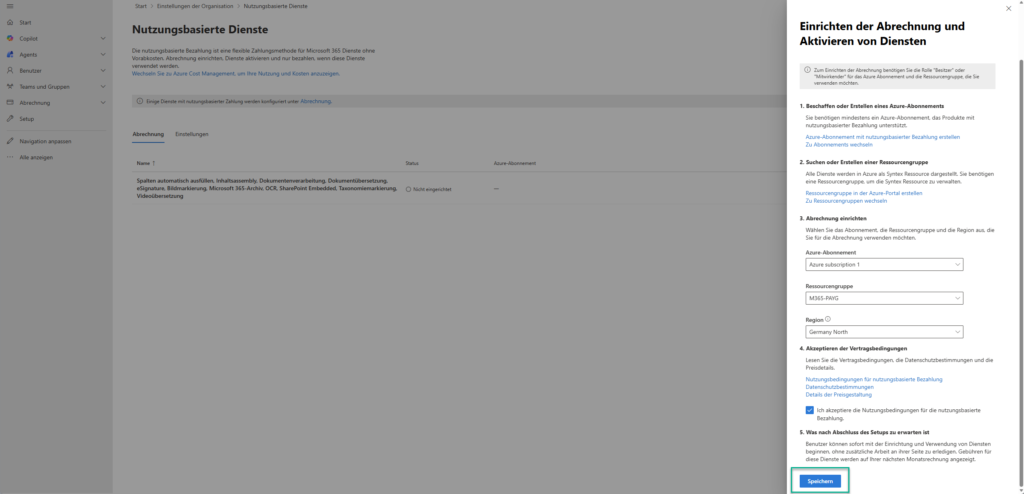
- Open the configuration menu in the Microsoft 365 Admin Center
- Click on the option “Automatically fill columns, content assembly, …” in the “Billing” tab.
- Under point 3, select the previously added subscription, resource group, and region (only the “Germany North” region is available from Germany, but this is not a problem).
- Under point 4, check the box.
- “Save.”
The setup will now begin. This may take a few minutes. The status should then be displayed as “Active” in the overview.
Microsoft 365 Backup and Copilot
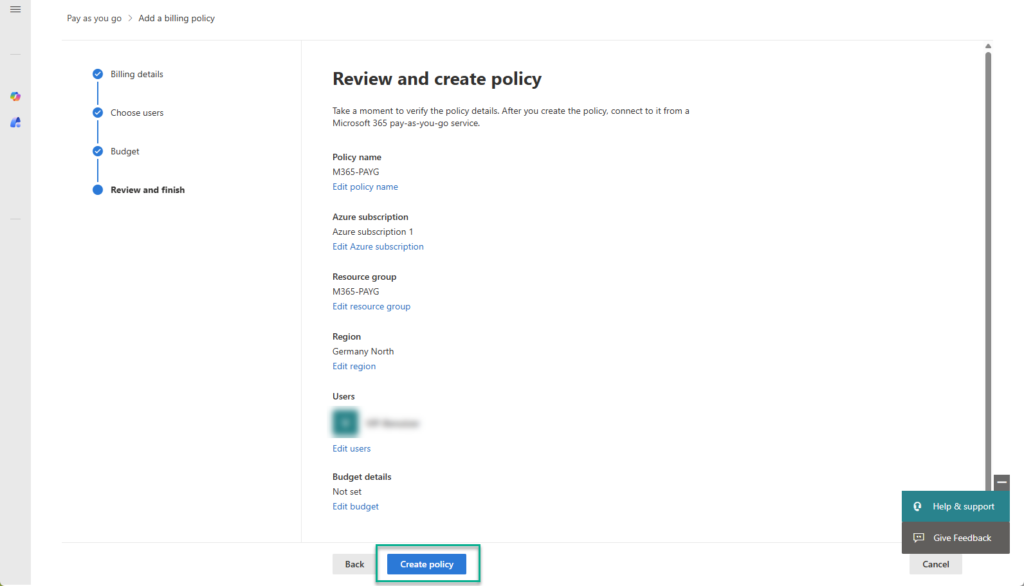
If usage-based billing is also to be activated for Microsoft 365 Backup and Copilot, this must be set up in another location. Here, further details can be configured, such as activating a specific user group, setting upper limits for consumption, and corresponding warnings.
The options are essentially the same as for general services. User selection and budget parameters depend on the individual requirements of the company. If necessary, additional policies can be created for other groups. This can be used, for example, to allocate more budget to certain users.
Service activation
The services can then be activated as needed.
General services
All services can be configured individually according to the need under Settings - Microsoft 365 admin center.
Microsoft 365 Backup and Copilot
The previously created billing policy must be assigned to the desired service on the page Pay-as-you-go - Microsoft 365 admin center. A policy can also be assigned to multiple services.
Liked this article? Share it!



One thought on “Pay-as-you-go services in Microsoft 365 - Options and Setup”