Electronic signatures in Microsoft 365 - without external solutions!
 Krähe mit Hut
Some documents must be legally signed to prove the identity of the creator/sender. In the past, this meant printing out the document, signing it by hand, and sending it to the recipient by mail.
In the age of digitalization, however, this is no longer appropriate. As a result, numerous providers have now established themselves on the market that enable qualified electronic signatures (also known as eSignatures).
Well-known providers include Yousign in Europe, Adobe (Acrobat Sign), and DocuSign. Documents can be uploaded to these providers and signed electronically. To do this, you need to take out a suitable subscription with the provider. However, it would be nicer to be able to carry out the signing process directly where the document is stored – without an additional subscription, uploading, or third-party providers.
And lo and behold – Microsoft 365 now (since September 2025) includes such a feature: Microsoft 365 eSignature! This allows documents to be signed natively in Microsoft 365.
If the company already uses Adobe Acrobat Sign or DocuSign, these solutions can be integrated into eSignature. This makes it easier for employees to use these services, as they no longer have to switch platforms. The integration does not incur any additional costs!
Prerequisites and limitations
The list of requirements is pleasingly short:
- Azure subscription with active billing
- Enterprise version of Office apps if eSignature is to be used directly in Word
An Azure subscription is necessary because it is a service that is billed according to usage. A price overview can be found here: Pay-as-you-go pricing for document processing for Microsoft 365 | Microsoft Learn
The following article shows how to set up an Azure subscription as the basis for using eSignature: Pay-as-you-go Services in Microsoft 365 - Options and Setup
However, the service also has a drawback. Signed documents cannot be shared with just any contact. The signer/recipient must have or be given a guest account in order to access the share link.
Configure the service
Since a guest account is required to access documents to be signed, some prerequisites must first be checked.
Preconditions
ÜUsually, a company has restricted or even disabled guest access in some way. At the very least, guest access must be permitted. Furthermore, it must be checked who is allowed to create guest accounts:
- If guest users can only be created by administrators or specially designated employees, one or more guest users may have to be created before a document can be released. This can slow down the process.
- If all users are allowed to invite new guests to the organization, a process for checking and cleaning up inactive/unneeded guest accounts should be established. Otherwise, use of the service can lead to an uncontrolled increase in guest accounts that are no longer removed.
Furthermore, a company usually protects access to its services with conditional access rules. Here, it must be ensured that guests are generally allowed to access SharePoint Online, Teams, and, if applicable, OneDrive for Business. This is necessary in order to access documents stored there and to be signed.
If the company uses Purview confidentiality labels, these can also block access to documents that need to be signed. Accordingly, external sharing must be allowed for websites where documents that need to be signed are located.
Enable Entra B2B integration
By default, eSignature can only be used with existing guest accounts. This can generally be retained if the company does not allow employees to invite new guests. If employees are to be able to invite the necessary contacts themselves as part of the document signing process, the Entra B2B integration for SharePoint and OneDrive must be activated. This is only possible using PowerShell:
# Install necessary PowerShell module, if not installed yet
if (!(Get-InstalledModule Microsoft.Online.SharePoint.PowerShell -ErrorAction SilentlyContinue)){Install-Module Microsoft.Online.SharePoint.PowerShell -Scope CurrentUser}

# Connect to SharePoint Online
Connect-SPOService -URL https://<Name der Organisation>-admin.sharepoint.com

# Enable Entra B2B integration - requires the role "SharePoint Administrator" or higher
Set-SPOTenant -EnableAzureADB2BIntegration $trueConfigure a policy
To display the eSignature button in Word, the function must be explicitly activated. The following options are available:
| Method | Procedure |
|---|---|
| Group policy | Warning: This policy appears to be missing from current template files! In this case, the configuration can be done via the registry value. - Provide Office ADMX templates, if not existing yet (Download Administrative Template files (ADMX/ADML) for Microsoft Office from Official Microsoft Download Center) - User Configuration - Policies - Administrative Templates - Microsoft Word 2016 - Word options - Allow the use of SharePoint eSignature for Microsoft Word > Enable |
| Cloud Policy Service | - Open configuration portal: Microsoft 365 Apps Admin Center - Create new policy or extend existing policy - Allow the use of SharePoint eSignature for Microsoft Word > Enable |
| Intune | - Open configuration portal: Devices - Microsoft Intune admin center - Neue Richtlinie erstellen oder vorhandene Richtlinie ergänzen - Allow the use of SharePoint eSignature for Microsoft Word (User) > Add and enable |
| Registry value | - HKEY_CURRENT_USER\SOFTWARE\Policies\Microsoft\Office\16.0\Word\Options - Wert: isesignenabled - Typ: REG_DWORD - Wert: 1 |
Enable the service
It is assumed that an Azure subscription has already been provided for billing purposes (see Pay-as-you-go Services in Microsoft 365 - Options and Setup). This is also required if a third-party provider (e.g., DocuSign) is to be used. In this case, however, no additional costs will be charged. Activation is carried out in the Microsoft 365 Admin Center:
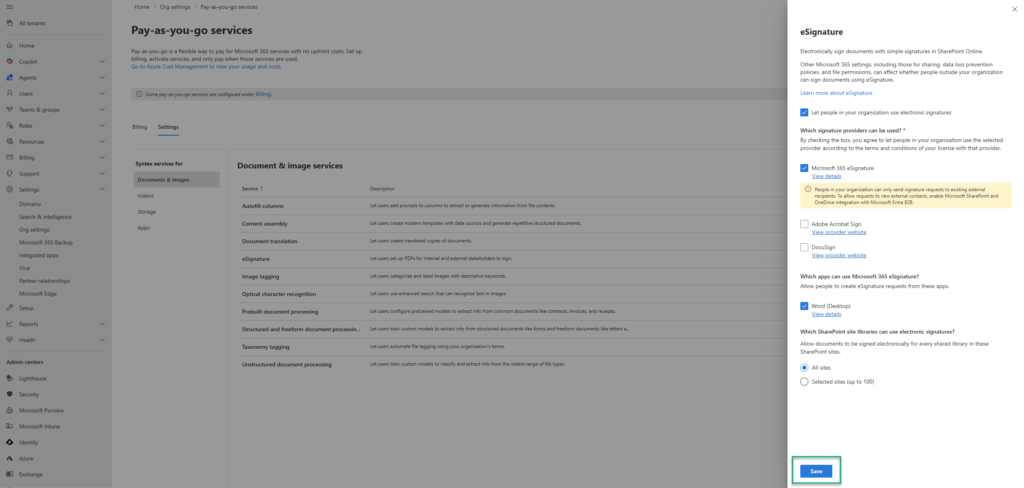
- Open configuration for eSignature: Settings - Microsoft 365 admin center
- Configure options as required (e.g., "Microsoft 365 eSignature" or alternative provider)
- "Save"
It may take some time before the option becomes available. Users will then be able to insert signature fields into documents directly from Word or via the web applications.
If it's still not working, the setup process in the background is probably not yet complete. Just keep trying.
The following article describes the procedure in detail: Create a signature request from a PDF in eSignature | Microsoft Learn
Comparison of eSignature and DocuSign
DocuSign is probably the best-known solution for electronic signatures and is therefore widely used. Accordingly, DocuSign offers significantly more features, but also costs considerably more. The following table provides a comparison between the solutions. This allows you to assess whether eSignature is sufficient for your needs or whether a third-party solution would be a better option.
| Criterion | Microsoft 365 eSignature | DocuSign |
|---|---|---|
| Pricing | 2€ per request | Different plans, 9€ - 38€ per user per month |
| Integration | Word and SharePoint Online only | Word, Outlook, Teams, SharePoint Online; M365 eSignature |
| Email notifications | Yes | Yes |
| Expiration date for signature | Yes (30 days, not configurable) | Yes (individual settings) |
| Multiple recipients | Yes | Yes |
| Order of recipients | Yes | Yes |
| Individual message per recipient | No | Yes |
| Recipient types | Internal and Entra guest users | Any recipient |
| Supported file formats | *.docx, *.pdf | Numerous Office and non-Office formats (e.g., *.txt) |
| Support cloud storage providers | SharePoint Online only (incl. Teams) | Numerous cloud storage services (e.g., OneDrive, Dropbox) |
| Signature format | Text input | Text input, signature images, freehand signature |
Liked this article? Share it!