Save licensing cost for Defender for Office 365 - with exclusions!
 Krähe mit Hut
Proper licensing is difficult to achieve with many manufacturers. There are many pitfalls and peculiarities involved in this topic—it's not for nothing that people often refer to it as a “licensing jungle.” This typically leads to companies preferring to license “too much” in order to be on the safe side.
However, with the right partner at your side, this does not have to be the case. What is needed is a clear strategy, the relevant knowledge, and appropriate maintenance to use licenses in a cost-effective manner that meets your needs.
This article deals with Microsoft Defender for Office 365:
- What is the service used for?
- Who needs a license?
- Can users be excluded from licensing?
What is Microsoft Defender for Office 365?
Microsoft Defender for Office 365 (MDO) is an add-on for all users with access to Teams and/or an Exchange mailbox.
MDO Plan 1 adds protection features for emails and documents stored in Teams, SharePoint Online, and OneDrive for Business.
| Functionality | Description |
|---|---|
| Safe Links | Defender for Office 365 checks links to websites contained in emails/Teams messages/documents. If a malicious website is detected, the user receives a warning when attempting to access it and, depending on the settings, is prevented from accessing the website. |
| Safe Attachments | Defender for Office 365 re-scans email and Teams attachments after the Exchange Online Protection anti-malware scan by running attachments in a secure environment. Depending on the settings, only the email or nothing at all is delivered to the recipient if malicious code is detected. |
It is included in the following plans:
- Microsoft 365 Business Premium
- Microsoft 365 E3 (from July 2026)
- Office 365 E3 (from July 2026)
MDO Plan 2 adds features for automation, investigation, maintenance, and training. The table in the official article shows the differences between each plan: Microsoft Defender for Office 365 service description - Service Descriptions | Microsoft Learn
It is included in the following plans:
- Microsoft 365 A5/E5/G5
- Office 365 A5/E5/G5
Since MDO P1 adds essential protection features for email and Teams, it should be deployed as a base license for all relevant users.
Who needs a license?
MDO is a so-called client-wide service. This means:
- A single license activates the function for all users.
- There is no verification mechanism to ensure that only licensed users are allowed to use the function.
- The company must ensure that all users who benefit from the service are licensed.
Microsoft does not currently take action in the event of license violations, but reserves the right to do so. Since Microsoft itself has not built in a mechanism for measuring usage, this suggests that it is not so easy.
In the case of MDO, this basically means the following, with guest users explicitly excluded:
- If a "Secure Attachments” policy is enabled, all users who access SharePoint Online, Teams, and/or OneDrive for Business must be licensed.
- If a "Secure Links" policy is enabled, all users who use Microsoft 365 apps and/or access Teams must be licensed.
- All mailboxes with incoming/outgoing email traffic require a license. To this end, it must first be clarified which mailboxes fall under this regulation:
| Mailbox type | Description | License needed |
|---|---|---|
| User mailbox | Access to a mailbox by a real person | Yes |
| Functional mailbox | Access to a mailbox by an application or system | Yes |
| Shared mailbox | Centrally provided mailbox for receiving/sending emails via a general address by multiple people | Yes |
| Resource mailbox | Centrally provided mailbox for providing reservation functions for shared resources (e.g., meeting rooms, meeting components, vehicles, etc.) | No, because such mailboxes are not used for email communication. |
Can users be excluded from licensing?
Short answer: yes! Microsoft allows mailboxes to be excluded using built-in features.
Long answer: it depends! 😉
Long answer: Since MDO is a security-related service, careful consideration must be given to which mailboxes can be excluded from its functions.
Every unlicensed mailbox or unlicensed user can represent a gateway for malware.
In my projects, for example, I have seen the following:
- A company is required by law to retain the mailboxes of former employees. However, email reception is completely disabled for these mailboxes. Such users no longer need to be licensed, as no new (and potentially harmful) content can be created.
- A company uses general service accounts to manage Power Platform environments and Forms surveys. These accounts are equipped with a license that also includes Exchange Online for access. However, these users do not use the mailbox and do not access Teams. Accordingly, they are exempt from the MDO guidelines.
The following article describes some more useful details about the correct licensing of Defender for Office 365: New Guidance for MDO P2 Licensing Issued by Microsoft
How does it work?
MDO offers the possibility to restrict policies to specific mailboxes or groups, or to exclude individual mailboxes and groups from policies.
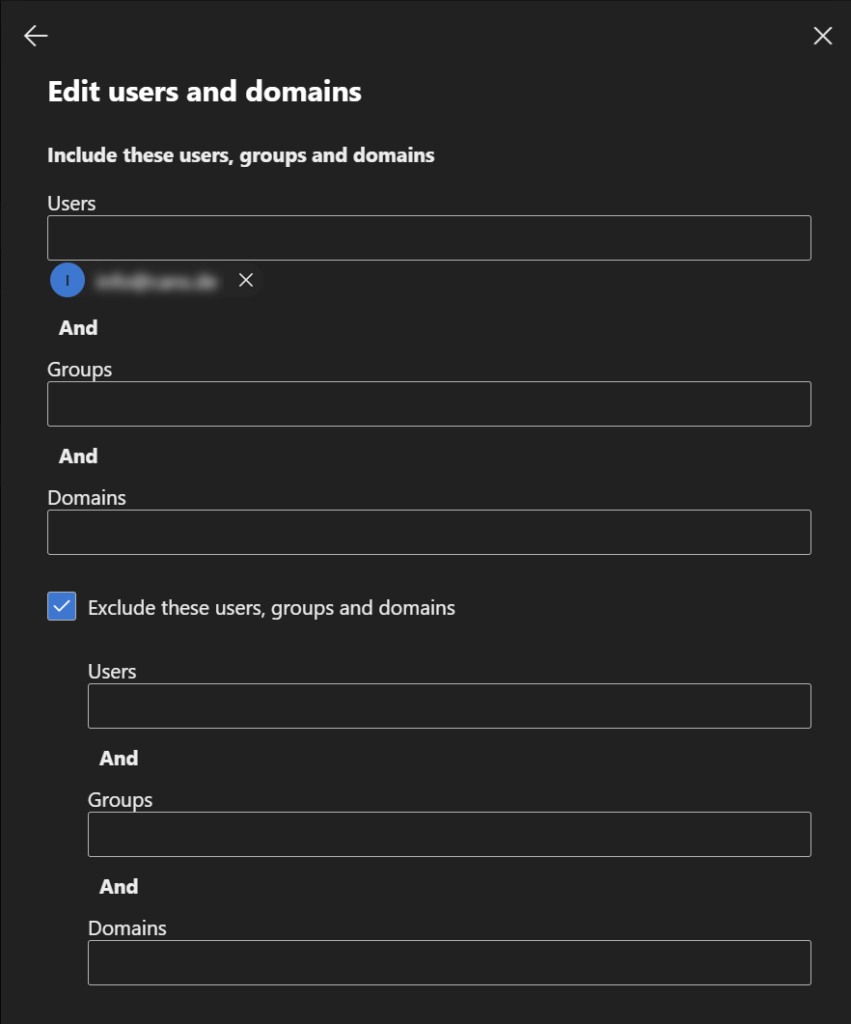
Since most mailboxes/users must be licensed (see table above), it makes more sense to use the exclusion method:
- Policies are generally applied to all objects/domains.
- Mailboxes that are to be excluded are excluded from the policy via a group.
Since MDO is technically based on Exchange Online, an email-enabled security group is required for this. Normal Entra security groups cannot be used.
Graphical interface
- Open the group overview in the Exchange Admin Center: Active groups - Exchange admin center
- Select “Add group”
- Select “Email-enabled security”
- Assign a group name (note: if the “Next” button is grayed out despite entering text, clicking in the “Description” field will help)
- Assign owner and member(s)
- Assign email address (recommendation: use the domain “…onmicrosoft.com” as the group is not used for email communication)
- Complete the wizard
It is recommended that you hide the group from the global address list after creating it, as it should not be used for email communication. To do this, select the corresponding checkbox in the group properties in the “Settings” tab.
- View overview of guidelines for secure attachments: Security & Compliance
- Open a policy.
- Under “Users and Domains,” select the “Exclude these users, groups, and domains” option and add the new group.
- Save the policy.
- Repeat the steps for additional policies.
- View the overview of policies for secure links: Secure Links – Microsoft Defender
- Add the group to all policies as shown above.
PowerShell
PowerShell can also be used to solve this problem. You can use a script that I have stored in my script nest.
The script performs the following steps:
- Request a name for the new email-enabled security group.
- Request the mailboxes to be included in the new group.
- Add the group members.
- Adjust all MDO-relevant policies (“Safe Links” and “Safe Attachments”) – add the new group to the exclusion list.
Liked this article? Share it!