Easily copy address books from Exchange Server to Exchange Online!
 Krähe mit Hut
Exchange address books can be used to group mailboxes into logical units, such as company divisions. This gives employees an overview of the company structure and allows them to see which divisions an employee is assigned to.
One of my customers uses these address books quite extensively. At the same time, they are currently switching from Exchange Server to Exchange Online. As a result, all mailboxes are gradually being migrated to the cloud.
It has been noticed that the address books are no longer available for the migrated mailboxes. The reason for this is clear: address books are not automatically synchronized between environments. Accordingly, they must be transferred manually. And this article shows you how to do this easily!
Prerequisites
Permissions
The following permissions are required to perform the steps described in this article:
| Role | Usage |
|---|---|
| View-Only Organization Management | Read all existing user-defined address lists and export to CSV file if necessary |
| Address List Management* | Create address lists in Exchange Online |
| Exchange Administrator | Create the role group "Address List Management" |
* This role must first be created and assigned in Exchange Online. By default, the permission is not assigned to any existing role.
Create the management role in Exchange Online
Address lists can only be created and managed in Exchange Online using PowerShell. Furthermore, the permission for this is not assigned to any existing role (not even Exchange Administrator!). Accordingly, a role group must first be created for this purpose. This can be done via the graphical user interface or via PowerShell.
Note: After assigning a user to the role, it may take several hours for the CMDlets to become available.
Graphical interface
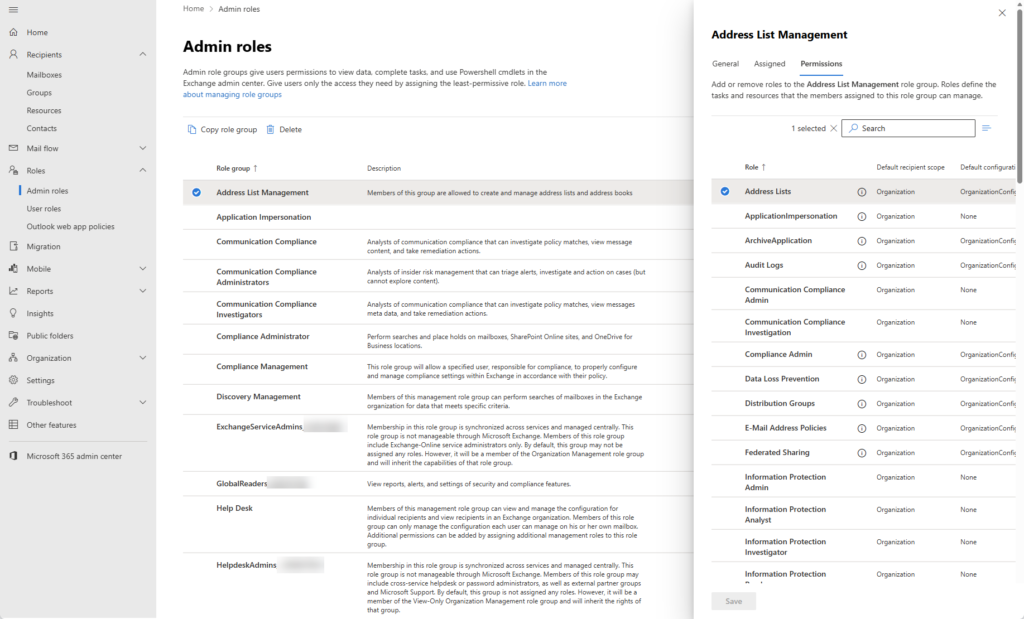
- Open portal: Exchange admin center
- Choose "Add role group"
- Enter name and description
- Choose role "Address Lists"
- Add members and finish creation
Note: Only users with a mailbox or mail-enabled groups can be added here. If the administrator accounts do not have a mailbox, they must be added to the group via PowerShell (see the following chapter).
PowerShell
The role group can be created as follows using PowerShell. Users who do not have a mailbox can also be added as members during this process:
# Check if required module is installed and install, if not
if (!(Get-InstalledModule ExchangeOnlineManagement -ErrorAction SilentlyContinue)){Install-Module ExchangeOnlineManagement -Scope CurrentUser}

# Connect to Exchange Online
Connect-ExchangeOnline -ShowBanner:$False

# Create new role group
New-RoleGroup -Name 'Address List Management' -Description 'Members of this group are allowed to create and manage address lists and address books'

# Assign role to role group
New-ManagementRoleAssignment -Name 'Address List Management' -Role 'Address Lists'

# Add member to role group
Add-RoleGroupMember -Identity 'Address List Management' -Member '<Username>'Procedure
To copy the address books, you can use a script from my script nest as a basis. You may need to adapt this to your specific requirements. The script works as follows:
| Function | Description |
|---|---|
| Ask for script mode | Possible variants: Export only (e.g., if the connection to Exchange Online must be executed on another system) Import only (e.g., if a prepared import list is already available) Both (if both export and import can be performed on the same system) |
| Connect to Exchange Server, retrieve and export address lists | Filtering of all standard address lists (German and English Exchange Servers are supported). The export also includes the parameters “ConditionalCompany” and “ConditionalDepartment.” These are multi-part attributes, so they must be exported in a specific way. If you want to export other conditions instead of these, you must adjust the command accordingly. |
| Connect to Exchange Online and check if needed commands are available | The connection is established by prefixing the CMDlets. This prevents the script from being accidentally executed against the local Exchange infrastructure. If the commands for modifying address lists are not available, a corresponding output is generated and the script is terminated. |
| Create address lists based on export | Either from a cached variable or CSV file |
Did you know? Address lists can build on each other to form a hierarchy. This works by specifying an existing address list as a parent element when creating a new one. In addition, real address book hierarchies can also be created to completely replicate organizational structures. If you want to know how to do this, take a look here: Hierarchies for Exchange Address Lists - why and how does it work?
Liked this article? Share it!