Beware of pitfalls - do you have Microsoft's security baselines under control?
 Krähe mit Hut
I regularly have the “pleasure” of installing new domain controllers (DCs), for example when new operating system versions are released. Currently, this is Windows Server 2025.
I have already done this successfully in various environments. However, in one environment, I encountered a problem that could potentially have major implications. I will briefly describe this below.
The phenomenon - endless operating system startup
As usual, I deployed a new virtual machine (VMware) and installed and configured the “Active Directory Domain Services” role. The server must be restarted to apply the configuration. It is quite normal for domain controllers to take a little longer to display the login screen, especially when starting up for the first time. However, in this case, the server got stuck while processing the group policies and even after hours, nothing happened. As a result, the server was unusable.
Issue analysis
To get to the bottom of the cause, I ran various tests. My assumption was that some group policy was causing the problem, especially since the server reproducibly got stuck with the same group policy. However, I was already able to rule out the policy itself, as it only set a few irrelevant registry settings and was processed without any problems on all other servers.
- Attempt 1: Disabling the network card in the hypervisor
First, I disabled the virtual machine's network card. This changed the behavior, albeit not satisfactorily. Now the virtual machine hung for about an hour at the “Computer settings are being applied” step. After that, however, at least the login screen was displayed again. The duration was reproducible, so it pointed to some kind of default timeout value.
However, for group policies, this value is usually set to 10 minutes. I concluded that the problematic setting had already been applied to the system and had to be removed in a different way.
- Attempt 2: Deleting the locally stored group policies
Most group policy settings are stored as values in the registry. Therefore, they can be removed quite easily. To do this, the contents of the following path must be deleted:
HKEY_LOCAL_ MACHINE\Software\Policies\Microsoft
The subsequent restart did not improve the situation. Therefore, it must be a setting that is not stored in the registry.
- Attempt 3: Disabling all additional group policies in the OU "Domain Controllers"
Since the server was functioning properly until the server role was installed and all member systems were also functioning properly, it had to be a policy that applies specifically to domain controllers. Accordingly, I disabled all additional group policies. The default policies (“Default Domain Policy” and “Default Domain Controllers Policy”) remained enabled because they had not been modified.
Again, restarting did not improve the situation. So it had to be a setting that either had to be explicitly configured in the opposite way (“Disabled” instead of “Enabled”) or was so deeply embedded in the system that it could no longer be easily removed.
- Attempt 4: Uninstalling the server role
To narrow down the problematic policy, I then uninstalled the server role. And lo and behold: the server started up normally again. So it had to be a policy specific to domain controllers. And this led me to Microsoft's basic security policies.
What are the security baselines?
These are predefined group policies that can be imported using a script. They are provided free of charge by Microsoft under the umbrella term “Security Compliance Toolkit” and can be downloaded from the Download Center. They serve to harden the operating system and apps against typical attack vectors and close potential vulnerabilities.
Basic security policies are available for the following operating systems and applications:
- Windows (endpoints)
- Windows Server
- Edge (browser)
- Office LTSC/Microsoft 365 Apps
The policies are published separately for each operating system or application, but are generally upward and downward compatible. Updates are published at irregular intervals and must then be imported again. The policies can either be distributed via Active Directory or imported locally on an isolated server.
Did you know? With Windows Server 2025, it is no longer necessary to import the basic policies. WS2025 includes the “OSConfig” solution, which allows policies to be activated directly in a simple manner. For more information, please refer to the official article.
An important part: virtualization-based security
The basic policies are divided into several group policy objects that configure different areas. One part of this is virtualization-based security (VBS), which can be enabled not only for domain controllers but also in general. However, there is a separate policy specifically for domain controllers.
VBS is supported by all common virtualization platforms (e.g., VMware, Hyper-V), but must be explicitly enabled for the virtual machine if it is to be used. And this is where I encountered a stumbling block.
Stumbling block: enabled in Windows, but not in the hypervisor
The basic policy that activates VBS on domain controllers was linked to the organizational unit for domain controllers. However, the new virtual machine that I set up for the domain controller was not configured accordingly. In VMware, a check mark must be set in the configuration when creating the VM or afterwards:
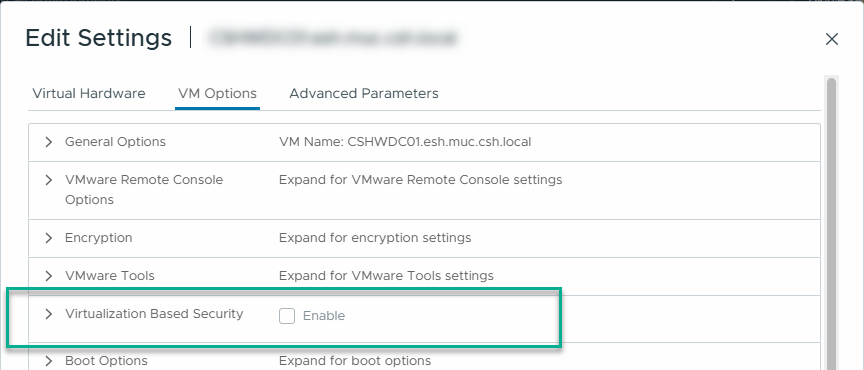
Interestingly, I did not encounter this error in other environments, or it manifested itself differently. The policy was also linked there and the hypervisor setting was not active. In these cases, an error message appeared when updating the group policy using gpupdate /force:
Event ID: 1085, Source GroupPolicy
Error applying the "{F312195E-3D9D-447A-A3F5-08DFFA24735E}" settings. (...)
With some research, it turns out that this is also due to the virtualization-based security policy. Removing the link makes the error disappear.
Solution(s)
To test this, I first tried disabling the policy for the new server and then upgrading it back to a domain controller. However, after restarting, the same thing happened again: endless startup. Since the server was not yet in active use, I cut my losses and completely reinstalled the server. That seemed easier to me. 😉
Other possible solutions are:
- Disabling/removing the policy (not recommended from a security perspective, of course)
- Enable the option in the hypervisor BEFORE installing the "Active Directory Domain Services" role.
Tip: Enable detailed status messages
By default, Windows only shows very roughly which phases the system goes through during startup (e.g., processing scripts, applying registry settings, group policies, etc.). This can make troubleshooting considerably more difficult in such cases, as you cannot see which phase the system is stuck in.
It is therefore recommended to enable the “Show extremely detailed status messages” setting for all systems. This allows Windows to display more precisely what is being processed at that moment. This allows initial conclusions to be drawn about the potential source of the error. The setting can be found here:
Computer Configuration > Policies > Administrative Templates > System
Liked this article? Share it!