
Windows Server Upgrade - an overview
 Krähe mit Hut
Again and again, there is a new operating system version for Windows available. And typically, such upgrades never go entirely without difficulties or peculiarities of the new version.
This article lists a few things I've encountered in my projects. Hopefully, this will save others from scratching their heads when they encounter these issues. I haven't updated some server roles yet, so they are not listed here. This is therefore not (yet) a complete overview of all Windows server roles.
Important: Not all issues are directly related to Windows Server 2025, i.e., Windows Server 2025 is not always the cause. They may also occur with other versions.
General areas
This section describes topics that are relevant across the board or are not dependent on a specific server role.
Automated installation and partitioning
Windows operating systems can be deployed automatically in many ways. The basis for this is the so-called AutoUnattend.xml, in which the installation parameters are defined (e.g., number of partitions, server roles to be installed, specific settings, etc.).
Until now, it was possible to simply use the XML files from earlier versions for newer OS versions. However, this no longer works with Windows Server 2025—the installation gets stuck with an error message:
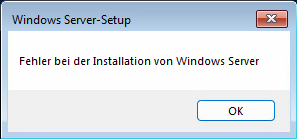
Error installing Windows Server
During testing, it became apparent that Windows Server 2025 apparently requires the creation of a recovery partition. In earlier versions, this was still optional. Unfortunately, attempts to create the recovery partition in the same way as the other partitions also failed.
The solution at the moment is a workaround: the partitions are no longer created as part of the XML code, but as a separate command line script using diskpart. It looks a little strange during installation (dozens of command line windows open and close quickly), but it works perfectly!
And the recovery partition is removed again after installation with another script (at least it's not needed in our case).
ReFS-formatted disks
Recently, I upgraded a server which had an additional data disk for SQL Express and an application running on it. This data disk was formatted with ReFS as ReFS is more robust than NTFS. Obviously, upgrading such a server is a bad idea... The upgrade took unusually long (other servers took approx. 30-60 minutes, this server took 3 hours) and after the upgrade the application and SQL failed to start - "the file was not found".
I looked at the disk and at first glance everything seemed fine - all files were there. But when I tried to copy a file explorer threw the same error: "File not found". So, the upgrade obviously corrupted the disk. I did some research and found other articles stating that they experienced the same issue (also with former OS versions). The root cause seems to be incompatibilities between ReFS versions which result in file corruption.
So, if your server uses ReFS disks, DO NOT use an inplace upgrade. Instead, install a new server or move files to a new NTFS formatted disk, if possible (i.e., mount the disks on another server and copy everything to the new disk).
Network connections
Part 1 - legacy network interface in VMware
In some environments, the customer used the E1000 Intel card for his VMware virtual machines. While is it generally recommended to use VMXNET3 (better performance, higher bandwidth, etc.), some admins may still rely on the old card.
In these environments I encountered a strange issue when demoting Domain Controllers. As part of the process, the virtual machine must be reboot. After the reboot, the virtual machine was not reachable anymore - no network connectivity at all, although nothing was changed in the networking configuration.
We did the usual - restarted network adapters, restarted the NLA service (known bug since Windows Server 2016), but to no avail. The only thing which helped was to replace the E1000 network adapter with a VMXNET3 adapter.
Important: we removed the old network adapter not only in VMware but also in the operating system by doing the following:
- Open a command line and enter the following commands:
set devmgr_show_nonpresent_devices=1
devmgmt.msc- Enable "Show hidden devices" under "View"
- Remove the old network adapter from "Networking adapters"
- Reconfigure the new network adapter with the networking configuration from before
The server immediately gained network access again and we were able to continue the demote process.
Part 2 - the good old NLA bug
The Network Location Awareness (NLA) service is meant to recognize which network the server is currently located in so specific firewall rules can apply. On Domain Controllers this service has a bug which is known at least since Windows Server 2016 and is still not fixed in Windows Server 2025 (however, I did not experience this issue with 2025 yet).
After reboot, the NLA service recognizes a wrong network so the Domain Controller applies the wrong firewall rule set and is not reachable anymore. There are several ways to fix this manually:
- Disable and enable the network adapter (only if accessing the server via console and does not work very well)
PowerShell (good when accessing the server remotely):
Get-NetworkAdapter | Restart-NetworkAdapter -Confirm:$False
However, these fixes are only temporary as the next reboot may cause this issue again. These ideas can fix the issue completely (maybe in combination):
- Set the NLA service start to "Delayed"
- Add additional services dependencies to the NLA service like DNS
- Implement a local script which restarts the network adapter after every reboot
Part 3 - DFS replication issues in Active Directory
When upgrading the Domain Controllers (by installing new ones) I recently encountered a weird issue with DFS replication which led to the scenario that the old Domain Controllers could not be demoted as they were unable to locate a valid replication partner.
When looking at the DFS replication event log, the following error (Event 4012, DFSR) was presented:
The DFS Replication service stopped replication on the folder with the following local path: C:\Windows\SYSVOL\domain. This server has been disconnected from other partners for n days, which is longer than the time allowed by the MaxOfflineTimeInDays parameter (60). DFS Replication considers the data in this folder to be stale, and this server will not replicate the folder until this error is corrected.
There is a long and a short way to solve this issue:
- Long way: do a non-authoritative DFS restore
- Short way: add the mentioned registry key with a higher value than given in the error message and restart the DFS replication service
You should see additional entries in the event log stating that the server initiates the replication again. Depending on the site configuration and replication intervals the demoting should work again.
Of course, this also can indicate a larger issue in your environment. Before you implement this workaround be sure that your domain controllers are fine and replication is only affected on this single domain controller.
Windows Server roles
This section describes in more detail the specific features of updating individual server roles. The following table provides an overview of the potential complexity of a direct update:
| Serverrolle/Funktion | Abkürzung(en) | Vorgehensweise | Maximaler Versionssprung |
|---|---|---|---|
| Active Directory Lightweight Directory Services | ADLDS | - (no experience) | - (no inplace upgrade) |
| Active Directory Domain Services | ADDS | - Deploy a new server - Demote and remove the old domain controller - Transfer the IP address and name to the new server - Install the new server as a domain controller | - (no inplace upgrade) |
| Active Directory Rights Management Services | ADRMS | - (no experience) | n+4 |
| Active Directory Federation Services | ADFS | If an ADFS farm is used, the farm's functional level must be raised after the update. | n+4 |
| Active Directory Certificate Services | ADCS | No special considerations | n+4 |
| File-/Storage Services | FILE | No special considerations | n+4 |
| Device Health Attestation | DHA | - (no experience) | n+4 |
| DHCP Server | DHCP | No special considerations | n+4 |
| DNS Server | DNS | No special considerations | n+4 |
| Print and Document Services | PRIN | Update printer drivers after upgrade | n+4 |
| Failover Clustering | FOCL | - Remove server from the failover cluster, upgrade, and re-add - After upgrading all servers, raise the cluster functional level - Repeat steps for further OS updates if necessary | n+1 |
| Fax Server | FAX | No special considerations | n+4 |
| Host Guardian Service | HOGA | - (no experience) | n+4 |
| Hyper-V | HYPV | - Increase the hardware version of virtual machines after upgrade | n+4 |
| Network Policy and Access Services | NPS | No special considerations (see the following chapters for information on using the Azure MFA extension) | n+4 |
| Remote Desktop Services - Gateway | RDCB | No special considerations (see the following chapters for information on using the Azure MFA extension) | n+4 |
| Remote Desktop Services - Licensing | RDL | Server reactivation is required after the update; installation of new RDS CALs for the current OS version may be necessary. | n+4 |
| Remote Desktop Services - Session Host | RDSH | No special considerations | |
| Remote Desktop Services - Connection Broker | RDCB | In a farm, update first, then the license server, then the session hosts. | n+4 |
| Remote Desktop Services - Virtualization Host | RDVH | No special considerations | n+4 |
| Web Access for Remotedesktop | RDW | No special considerations | n+4 |
| Remote Access Services | RRAS | No special considerations | n+4 (Direct Access is deprecated since 2024) |
| Volume Activation Services | VAC | When using KMS, install a current KMS key after upgrading. | n+4 |
| Web Server (IIS) | WEB | No special considerations | n+4 |
| Windows Deployment Services | WDS | No special considerations | n+4 |
| Windows Server Update Services | WSUS | No special considerations | n+4 (deprecated with Windows Server 2025) |
If a server is used to deploy an application, it's essential to verify which server version it supports. Furthermore, some applications may support direct updates, but for security reasons, a fresh installation might be preferable. Database applications like Microsoft SQL Server are a good example.The following section describes specific scenarios that can occur for each of the two server roles.
Active Directory Federation Services (ADFS)
Non-english servers
Some customers use Active Directory Federation Services for connecting external systems and users to their Active Directory. While it is not recommended to use ADFS for Entra ID authentication anymore there are still other use cases for ADFS.
The issues I encountered are specific to customers which do not install their servers in English language (as recommended). In these cases, it is highly recommended to at least enable the english language pack for the ADFS servers as some strange issues may appear, if not (service intermittently fails to start, no real error message, connection to database fails, etc.).
However, after upgrading such a server, the operating system language gets reset to the original installation language (German). To quickly re-enable the English language pack again it is advised to keep a local copy of the language pack ISO. If the server has Internet access, the language pack can also be downloaded via the settings app.
Also check, if the service account inside SQL Server got reset to the installation language. I cannot tell how this could happen but in my case the account was also reset to German which caused the ADFS service to fail during startup.
And, do not forget to upgrade the ADFS farm itself:
# Raise ADFS farm level
Invoke-AdfsFarmBehaviorLevelRaise -Confirm:$falseNetwork Policy Server (NPS)
NPS with Azure MFA extension
Some customers use the NPS (Network Policy Server) server role to add Azure MFA for VPN and Wifi connections. To connect NPS to Entra ID, the Azure MFA NPS extension is used. The extension is configured via a PowerShell script.
Upgrading such a server runs smoothly. However, after the upgrade, the server no longer communicates with Entra ID. Therefore, the NPS extension must be reconfigured using the script.
Note 1: If the customer is still using an older version, it may still use the MSOnline PowerShell module instead of Microsoft Graph. In this case, the NPS extension should be updated BEFORE the upgrade, as installing the Microsoft Graph module takes some time.
Note 2: If the server is installed in German, the configuration script must be adjusted manually. The service principal “NETWORK SERVICE” is hard-coded in the script and must be replaced with “NETZWERKDIENST”. Otherwise, the script will not be able to perform an important configuration step.
Windows Server Update Services (WSUS)
Windows Server 2025 ignores WSUS group policies
I first came across this problem through a LinkedIn post. Companies typically use the Windows Server Update Services role to centrally manage updates for Microsoft products. It appears that Windows Server 2025 ignores settings configured via Group Policy and simply uses its own defaults. This is evident because, despite configured settings, all options remain available (normally, individual functions are grayed out).
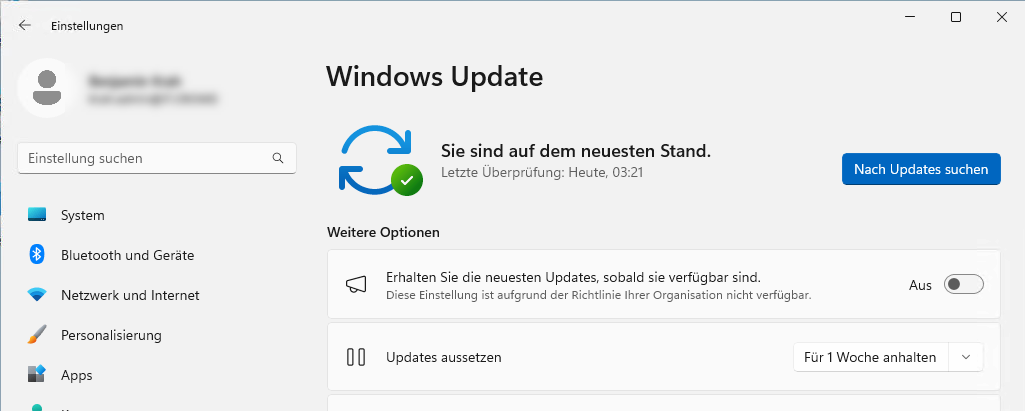
No options are greyed out so Windows Server 2025 obviously ignores GPO settings
Curiously, Microsoft recently removed Windows Server 2025 from the list of “Applies to:” operating systems in the official article describing how to use group policies for Windows Update. This could lead to the assumption that Windows Server 2025 will no longer support WSUS, especially since it was recently discontinued by Microsoft. However, this does not fit with the fact that WSUS also offers updates for Windows Server 2025 (referred to there as “Microsoft Server Operating System-24H2”).
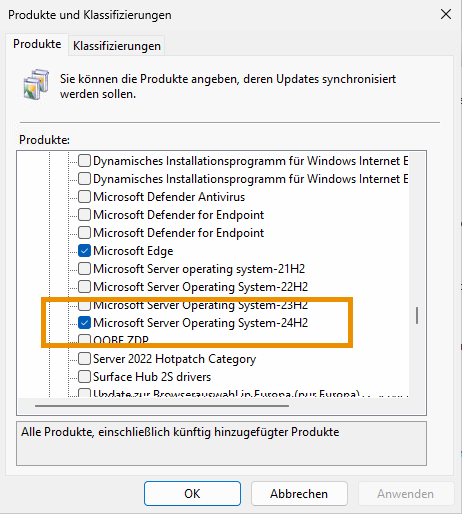
Product category for Windows Server 2025 (Microsoft Server Operating System-24H2)
The LinkedIn post links to an article (in German) that describes the reasons for this in detail. The article states that a few settings options specific to WSUS have recently been added. Of these, the following policy must be explicitly configured for Windows Server 2025:
Specify source service for specific classes of Windows Update
If this policy is enabled and all settings are set to “Windows Server Update Services,” Windows Server 2025 will adopt these and all other settings, such as the operating systems, as before. This therefore appears to be more of a bug than a silent departure from WSUS.
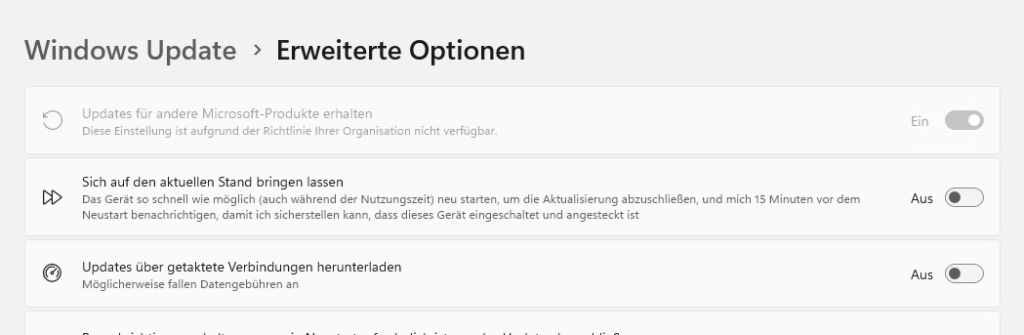
Windows Server 2025 applies GPO settings again
Liked this article? Share it!


One thought on “Windows Server Upgrade - an overview”