Email encryption, but easy - with Microsoft Purview!
 Krähe mit Hut
When people talk about email encryption in general, they usually mean S/MIME. PGP is another alternative, but due to its greater complexity, it is usually used more in the private sphere.
Both variants are quite complex to set up. In the case of S/MIME, it can also be quite expensive if automatic management is desired.
Microsoft offers a nice alternative to this with Purview Message Encryption (PME). This is fairly easy for users to use and can therefore increase acceptance of such methods.
This article aims to show how S/MIME and PME differ and what their respective advantages and disadvantages are. It also shows how Purview can be made available to users and how they can use it.
How does S/MIME work?
S/MIME (Secure/Multipurpose Internet Mail Extensions) is a widely used standard for signing and encrypting emails. This requires certificates on both the sender and recipient sides.
This means that it is not sufficient for only users within your own company to receive certificates. Contacts who are to receive encrypted emails must also receive certificates.
The certificates can be used by both an internal company PKI and a public PKI. If an internal PKI is used, the certificate revocation lists must be publicly available on the Internet.
The following steps must always be carried out to use S/MIME:
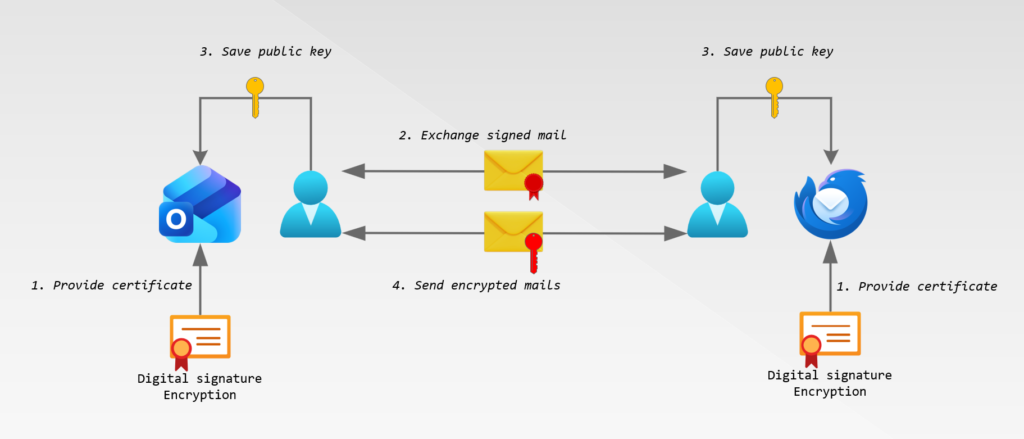
- Provide a certificate with the purposes “digital signature” and “encryption.”
- Have the user send a signed email to all recipients with whom encrypted emails are to be exchanged.
- The recipient must reply to this email with a signed email
- Both parties must save the public key of the respective certificate provided with the email
- Only then can mutually encrypted emails be sent!
Since managing certificates can become very time-consuming once the number of users exceeds a certain threshold, companies can also operate S/MIME gateways as an alternative. These are central systems that automate all the necessary processes for email encryption and decryption. However, these are quite expensive to purchase and maintain and therefore only pay off once a certain number of users is reached (e.g., 20-50, depending on the size of the IT department and the complexity of communication).
Purview Message Encryption (PME)
How does PME work?
Purview Message Encryption takes a completely different approach to traditional email encryption solutions. The email is not actually sent, but rather encrypted and made available for access. How this access works depends on the recipient's capabilities:
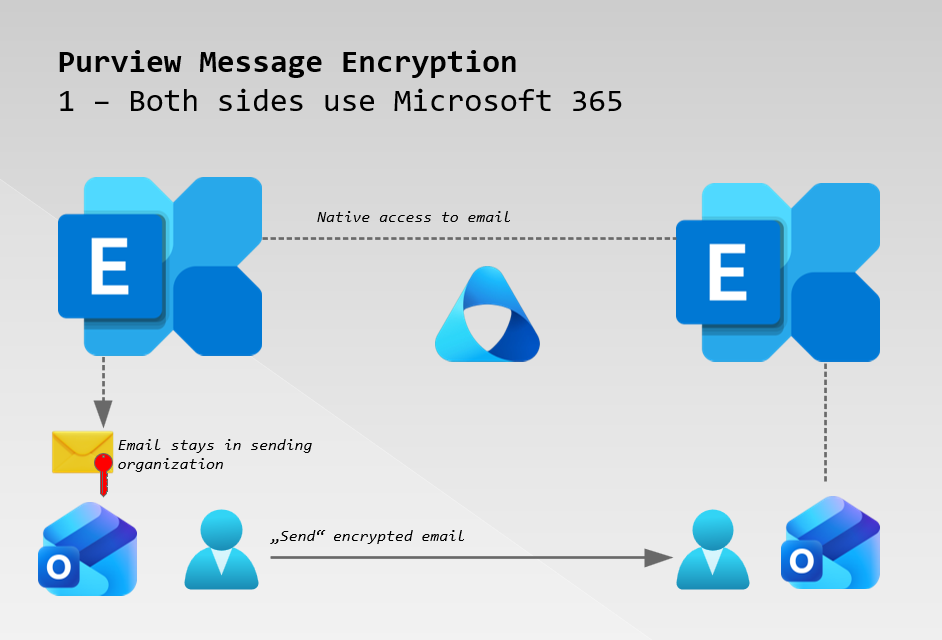
Scenario: The recipient uses Exchange Online as well as a version of Outlook (OWA, Outlook Desktop, Outlook Mobile) for access.
Access: The email is displayed in the recipient's mailbox and can be accessed as if it were natively located in the recipient's mailbox.
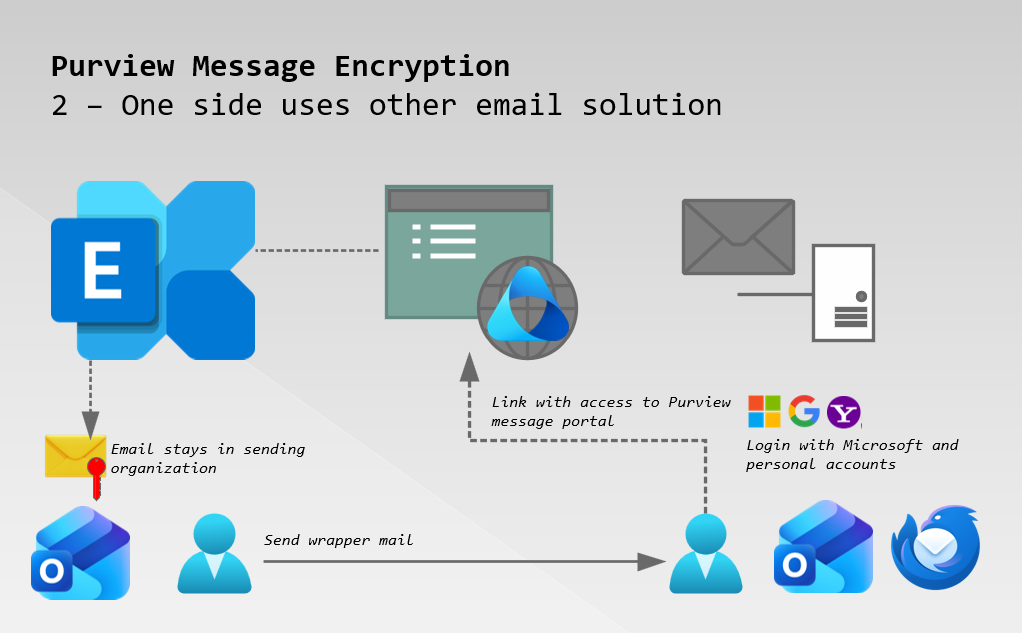
Scenario: The recipient uses a different email system than Exchange Online (e.g., Exchange Server) or a different email app to access emails.
Access: The recipient receives an informational email with a link to the Purview news portal. Depending on their settings, the recipient can log in with a Microsoft work account, a personal Microsoft account, a Gmail account, or a Yahoo! account. Depending on the settings, the login may require additional verification with a one-time code.
This approach appears more secure in comparison, as the email never leaves the company. However, emails encrypted with S/MIME are also unreadable without the necessary certificate, so using S/MIME is not inherently inferior.Nevertheless, the limitation to Microsoft products could pose a problem if the recipient uses other solutions. Therefore, it's essential to consider whether PME can be a viable alternative before implementation. In that case, Purview is preferable, as its implementation is significantly simpler.
Licensing
Purview Message Encryption is included in the following licenses:
- Office 365 A1/A3/A5, E3/E5, G3/G5
- Microsoft 365 Business Premium
- Microsoft 365 E3/E5
Alternatively, it can also be added to the following licenses using the Azure Information Protection Plan 1 add-on:
- Exchange Online Plan 1/2
- Office 365 E1/F3
- Microsoft 365 Business Basic/Standard
Therefore, PME is also very suitable for small businesses that want or need to send encrypted emails.
Configuration
The following chapters describe the procedure for deploying Purview Message Encryption.
Checking the status of Azure RMS and enabling it (optional)
PME is based on the Azure Rights Management Service (RMS). This is usually enabled automatically, so no further action is required. If this is not the case, this section describes how to check and, if necessary, enable its functionality.
# Check if needed modules are installed and install, if not
if (!(Get-InstalledModule AIPService -ErrorAction SilentlyContinue)){Install-Module AIPService -Scope CurrentUser}
if (!(Get-InstalledModule ExchangeOnlineManagement -ErrorAction SilentlyContinue)){Install-Module ExchangeOnlineManagement -Scope CurrentUser}

# Connect to Exchange Online
# Note: requires the role "Compliance Administrator" or higher
Connect-ExchangeOnline

# Check information rights management and enable, if required
if ((Get-IRMConfiguration).AzureRMSLicensingEnabled -ne $True){Set-IRMConfiguration -AzureRMSLicensingEnabled $True

# Connect to Azure Rights Management
# Note: requires the role "Compliance Data Administrator", "Compliance Administrator" or higher
Connect-AIPService

# Enable Azure Rights Management if required
if ((Get-AIPService).Status -ne 'Enabled'){Enable-AIPService}Customize branding for emails and message portal
The appearance of the Purview news portal and the associated informational emails can be customized. A standard template exists for this purpose, which can be adapted to the company's requirements.
By default, only one template can be used for all users. If it is necessary to use multiple templates, all users must obtain a license for advanced message encryption. This is included in various add-ons and in the E5 packages.
The following Excel template can be used to prepare and document the settings. Data can be entered here according to the company's individual requirements. The complete PowerShell command is then generated in the row above:
Create a mail transport rule
To enable users to encrypt emails with PME, a transport rule must be set up in Exchange Online. To do this, you must determine the conditions under which an email should be encrypted. The following options are possible, for example, although transport rules can contain many more conditions and exclusions:
- The user enters a specific text in the subject line or in the message, e.g., “[Encrypt]”.
- Emails to a specific recipient or domain are always encrypted.
- Emails are always encrypted for all employees in a specific department.
The transport rule can also be created using PowerShell. However, due to the wide range of options available for creating a transport rule, using the Exchange Online Admin Center seems to be the most effective method.
- Open the Exchange Online Admin Center.
- Select “Add a rule” and choose the option “Apply Office 365 message encryption and rights protection to messages.”
- Enter names and rules according to requirements.
- Continue with the wizard and save the rule.
- Create additional rules if necessary.
Users should then test whether sending encrypted email messages works as intended.
Liked this article? Share it!