
Microsoft 365 Migration | Part 1: Options for Collaboration
 Krähe mit Hut
In my first post, I discussed how companies can eventually face the challenge of merging multiple IT infrastructures. This post explores how companies can collaborate within Microsoft 365 without performing an integration.
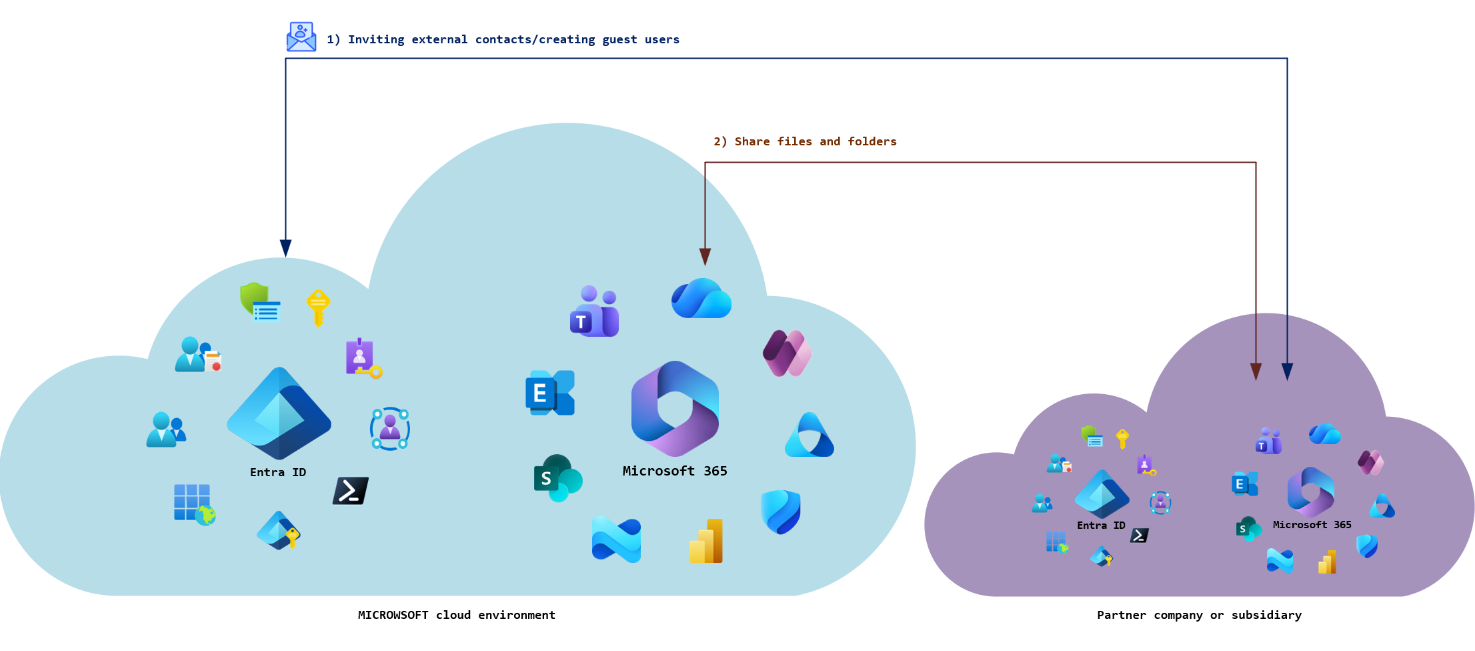
Option 1: Loose collaboration
This form of collaboration corresponds to the standard model, which is also used by unrelated companies. No special configuration is required to optimize collaboration in any way.
- Documents and folders are shared with external contacts via OneDrive, Teams, and/or SharePoint. Alternatively, guests are invited to Teams rooms to work on documents within the environment.
- Guest user accounts are created for external contacts in both organizations.
- The guest user accounts of the other organizations are subject to the security requirements for external contacts (e.g., acceptance of terms of use, MFA query, access checks, etc.).
The individual functions are subject to the respective security restrictions of the company. For example, in a company, the creation of guest accounts may be restricted to members of certain roles. This can lead to delays in collaboration, as accounts must first be created and cannot be created as part of the invitation.
The following table shows the advantages and disadvantages of this form of collaboration:
| Advantage | Disadvantage |
|---|---|
| No setup required, works directly in most environments | Guests of the other company are treated like external contacts and are therefore subject to all security guidelines. |
| Externally shared links can be given an expiration date; this reduces the risk of unintentional data leakage because links are not available indefinitely. | Guests cannot act on behalf of the inviting company (e.g., with a corresponding address in Teams and Exchange Online). |
| Guests must switch organizations in Teams or use a browser window to work in the inviting organization. | |
| In many companies, guest creation is limited, which can lead to delays in collaboration in this context. | |
| No access to internal company applications is possible (possibly via a full user, who, however, is subject to licensing requirements depending on the use of security solutions). | |
| No shared address book; only individually created guest users are additionally visible. |
Option 2: Entra B2B collaboration
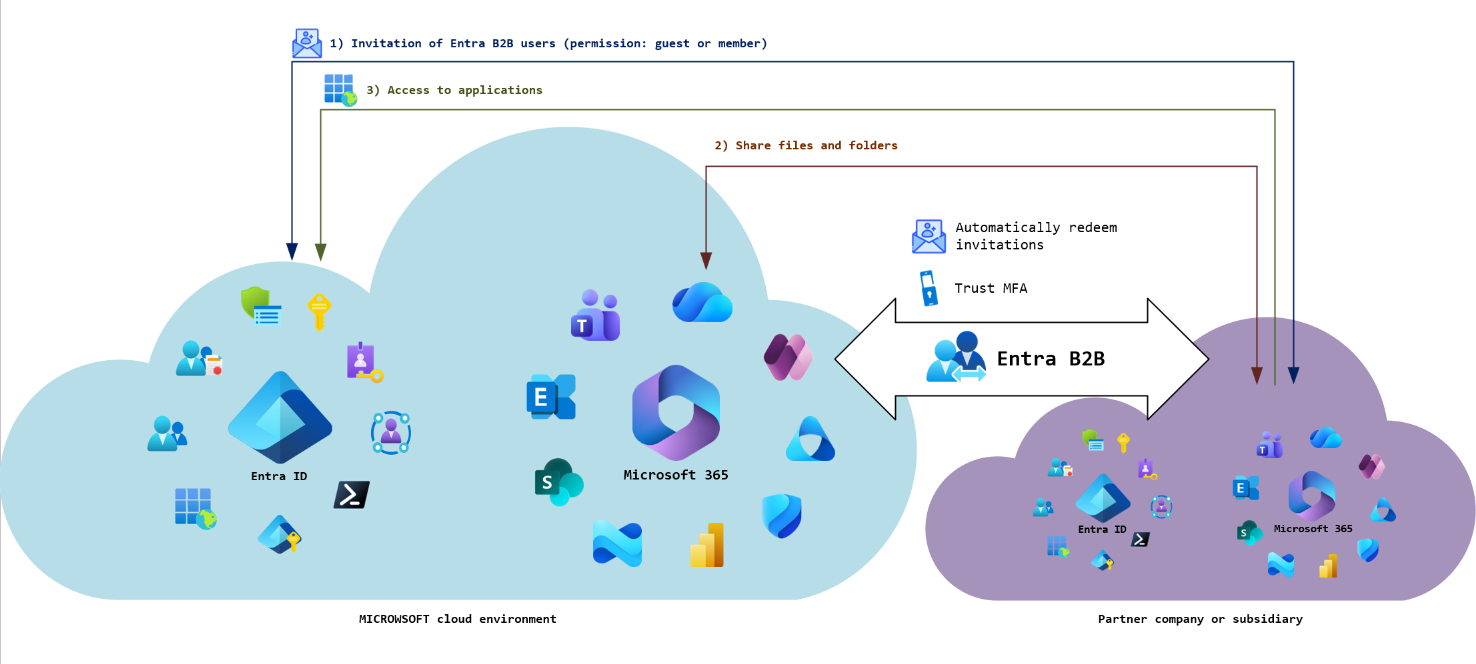
In this form of collaboration, companies are linked to each other through a kind of trust relationship. This requires a certain amount of configuration to define the level of trust that each company (or even specific groups) enjoys and which accesses should be simplified.
- Documents and folders are shared with B2B contacts via OneDrive, Teams, and/or SharePoint. Alternatively, B2B contacts are invited to Teams rooms to work on documents within the environment.
- In addition, it is possible to collaborate on documents in shared Teams channels.
- Trust levels can be set up for guest users from the other organization to avoid additional MFA queries.
- Guest users can be granted access to applications that are connected to their own Entra ID instance.
The individual functions are subject to the respective security restrictions of the company. For example, the use of shared channels or access to internal company applications may not be desirable. It may also be the case that the creation of guest accounts is restricted to members of certain roles. This can lead to delays in collaboration, as accounts must first be created and cannot be created as part of the invitation process.
The following table shows the advantages and disadvantages of this form of collaboration:
| Advantage | Disadvantage |
|---|---|
| Ermöglicht grundsätzlich die Nutzung freigegebener Kanäle (falls erlaubt) | Generally allows the use of shared channels (if permitted). |
| Basically allows access to internal company applications (if desired) | Guests cannot act on behalf of the inviting company (e.g., with a corresponding address in Teams and Exchange Online). |
| Different trust levels are possible per application or for general access, thereby avoiding additional MFA prompts. | Guests must (apart from shared channels) switch organizations in Teams or use a browser window to work in the inviting organization. |
| Guests no longer need to accept invitations manually, but can be activated directly (if desired). | In many companies, guest creation is limited, which can lead to delays in collaboration in this context. |
| No shared address book; only individually created guest users are additionally visible. |
Option 3: Multi-Tenant Organization
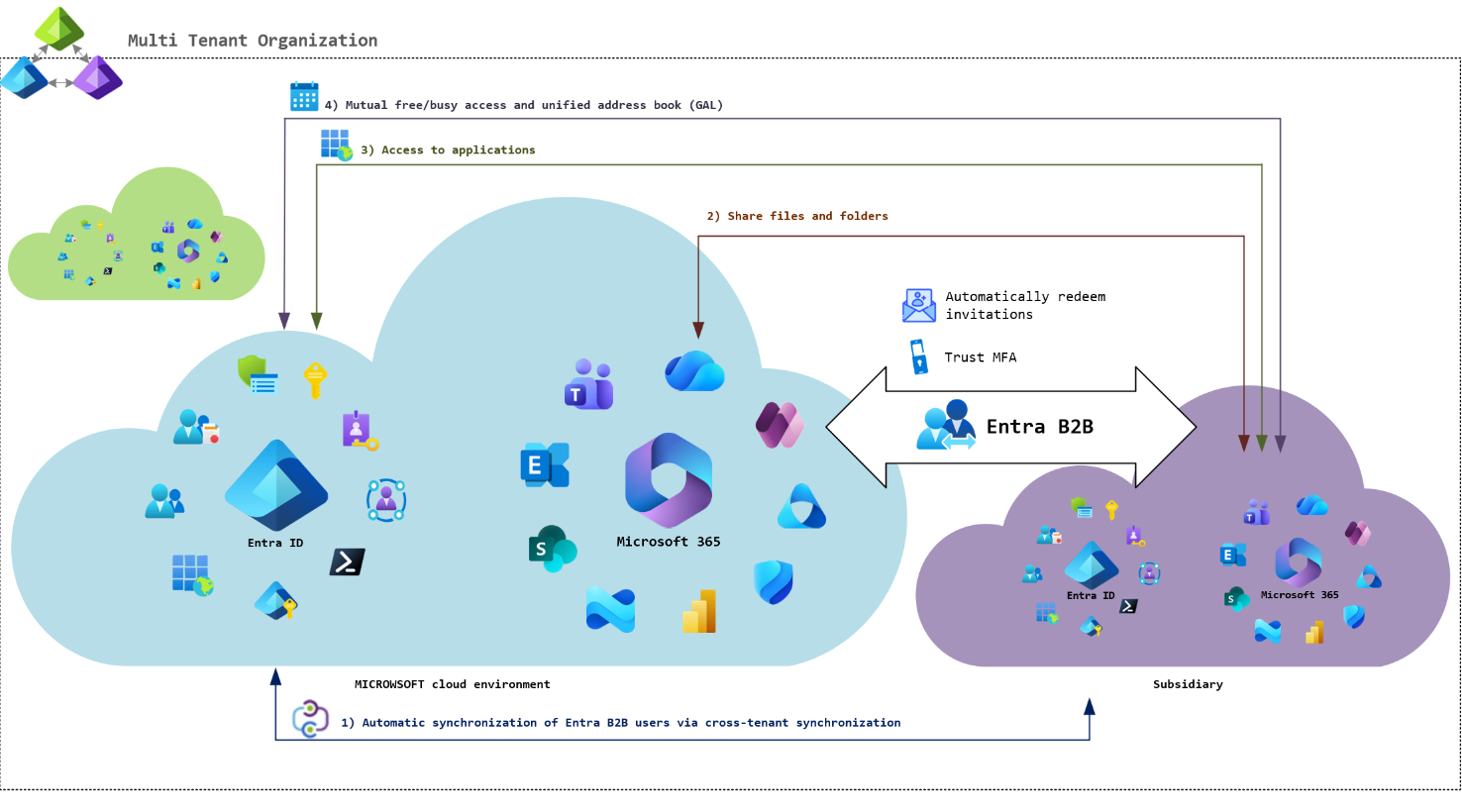
The multi-tenant organization (MTO) currently represents the highest level of connection between multiple Microsoft 365 organizations. It builds on Entra B2B collaboration and extends it with automated processes, such as user synchronization and the configuration of free/busy settings for mutual calendar access.
User synchronization works according to the SCIM principle and thus follows open standards. It can also be customized if necessary. MTO aims to make collaboration between companies as easy as possible by automating many of the necessary tasks. As such, MTO relies on companies within the organization to trust each other completely. Accordingly, MTO is more of an option for corporate groups.
The range of functions essentially corresponds to Entra B2B collaboration and extends it:
- User accounts are synchronized between clients based on specific attributes or group memberships. These are still guest users, but they are assigned the “Member” permission level so that they can be used for all requirements.
- Based on the authorization level, synchronized user accounts can also be made owners of teams, for example (not possible with the “guest” authorization level).
- Shared channels are available to all users (but can also be disabled).
- The companies trust each other with regard to MFA requirements. No additional MFA is required for access.
- Due to full synchronization, a uniform address list is created on all sides.
- All users can see each other's free/busy status.
The following table shows the advantages and disadvantages of this form of collaboration:
| Advantage | Disadvantage |
|---|---|
| Generally allows the use of approved channels (if permitted). | Guests cannot act on behalf of the inviting company (e.g., with a corresponding address in Teams and Exchange Online). |
| Basically allows access to internal company applications (if desired) | Guests must (apart from shared channels) switch organizations in Teams or use a browser window to work in the inviting organization. |
| Different trust levels are possible per application or for general access, thus avoiding additional MFA prompts; normally full trust. | |
| Automatic synchronization of user accounts and assignment of the "Member" permission level (customizable) | |
| Guests no longer need to manually accept an invitation; they are activated directly | |
| Automatic configuration of mutual free/busy availability | |
| Full address list for all participating organizations |
Typically, MTO is therefore the preliminary stage to full integration:
- In an MTO, companies are initially linked as closely as possible to enable the most seamless collaboration possible.
- An essential and usually very time-consuming step—the creation of user accounts in preparation for integration—is eliminated. The accounts are synchronized automatically and only need to be converted and licensed as part of the integration.
- Entra security groups will also be able to be synchronized soon (April 2026). This does not usually work in common migration solutions.
- After integration, only the old environment is removed from the MTO and all configurations are rolled back.
And what if my users are supposed to communicate on behalf of the other company?
In the context of a merger or acquisition, but also in other cases, the question often arises as to whether and how the employees of the acquired company should already act on behalf of the acquiring company. This may be the case, for example, if the new employees are to participate in a tender or an ongoing project.
The options outlined in this article do not offer a solution for this. In such cases, the employee(s) must therefore be provided with additional mailboxes/Teams users. It is not possible to use a company domain (e.g., microwsoft.de) in multiple tenants at the same time in order to distribute email addresses across both tenants.
There was once an entry in the official roadmap indicating that Microsoft planned to provide this feature. This entry is no longer available. However, we can only hope that Microsoft will revisit this issue at some point in the future.
Liked this article? Share it!



2 thoughts on “Microsoft 365 Migration | Part 1: Options for Collaboration”