
Microsoft 365 Migrations | Part 2: Management of the environments
 Krähe mit Hut
Optimizing and operating a Microsoft cloud environment is not something that can be done on the side. There’s no denying it: the cloud offers many opportunities for automation and natively provides the necessary security services. However, these do not configure themselves. The enterprise IT department still plays a crucial role in professionally implementing security and compliance requirements.
This may still work well in your own environment, which you operate on a daily basis. However, when additional environments are added—for example, through acquisitions or spin-offs of a business unit—things can quickly become complex and time-consuming.
This is primarily because there is currently no native, bundled functionality within the Microsoft Cloud that allows for centralized management of everything. Instead, you currently have to rely on a variety of individual solutions. This article provides an overview of the available centralized management solutions for both Azure and Microsoft 365. Since this series of articles focuses on Microsoft 365, however, the solutions relevant to Azure will not be discussed in detail.
At a glance
The following chart provides a quick overview of the solutions currently available natively in the Microsoft Cloud, as well as established third-party solutions. These are described in more detail in the following chapters.
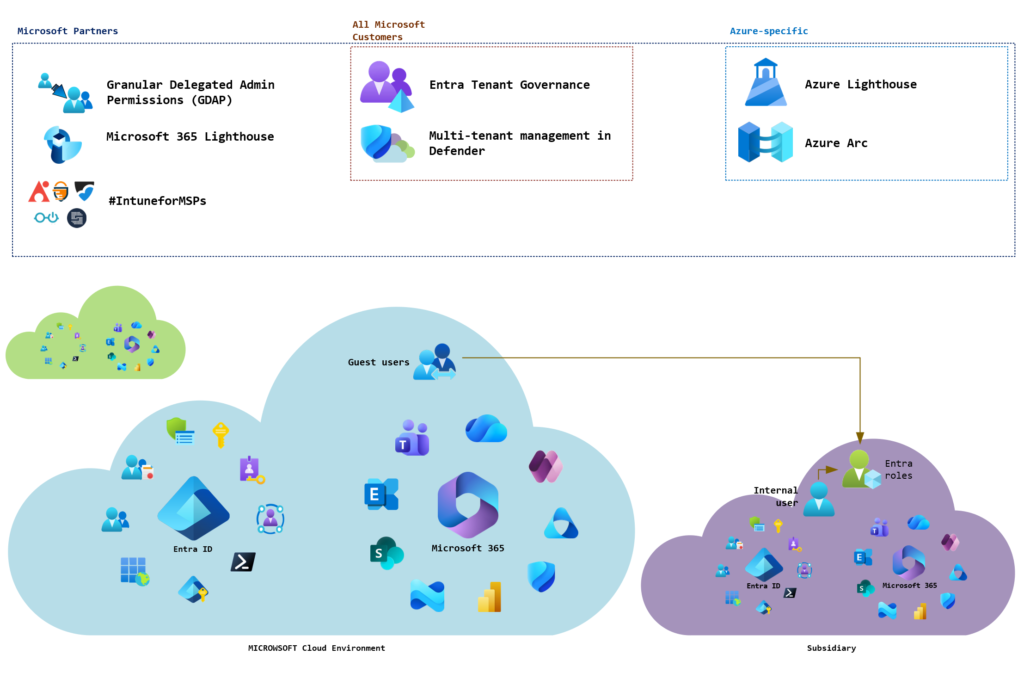
Classic approach: user-based administration
Typically, privileged access is provided through additional user accounts within the environments being managed. In general, it is possible to use both native users (type: internal) and guest users (type: external). These differ in how they are managed and in the options available to them. The following diagram provides a quick overview of the solutions currently available natively in the Microsoft Cloud, as well as established third-party solutions. These are described in more detail in the following chapters.
Comparison of internal and guest users
The following table compares internal and guest users. Details are explained in the following chapters.
| Criterion | Internal user | Guest user |
|---|---|---|
| Deployment | Full onboarding in target tenant | Invitation and assignment to privileged roles |
| Functionality | All features and services available | Limited functionality and services (e.g., no Entra PIM, not all admin portals available) |
| Licensing | A license may be required depending on the features used (exceptions may apply if clients are owned by the same company; see “Did you know?”) | Entra ID P1 and P2 features are free for up to 50,000 guest users; governance features require billing via Azure subscription. |
| Authentication methods | All authentication methods available | Natively only Authenticator app and phone-based methods are supported; other methods are indirectly possible via Entra B2B. |
Using internal accounts
Internal user accounts correspond to the standard user type in Entra ID. Accordingly, all options for assigning privileged access are available. However, internal user accounts generally require a license.
For example, if such a user is protected by conditional access rules, Entra ID P1 is required. If the user uses Entra Privileged Identity Management for time- and task-based privilege escalation, Entra ID P2 is required.
Did you know? If a company has multiple tenants—for example, within a corporate group or for testing purposes—only one license per user is required in the primary tenant! This means it is not necessary to license users per environment.
Important: This applies only to features included in Entra ID P1, P2, and Governance. To enable the respective feature set in the other environments, a single license must also be provisioned there.
Additional information and details: Understanding Microsoft Entra Licensing With Multiple Tenants
Furthermore, the user must be protected and managed separately. This means additional effort for onboarding and offboarding processes.
Using guest accounts
Guest user accounts are primarily intended for external collaboration and not for administrative purposes. However, it is generally possible to grant guest users privileged access.
Guest users are not subject to licensing requirements under the Entra ID P1 and P2 plans. The Monthly Active User model applies here, under which the first 50,000 guest users are free. However, if governance features are used, there is a charge for their use, and billing is handled through an Azure subscription.
Additionally, guest users cannot access all administration portals or connect to the tenant via PowerShell. For example, access works for portals that have a switch feature integrated (e.g., Azure or the Entra Admin Center). Portals without this feature (e.g., M365 Admin Center or Exchange Online Admin Center) are not available.
Furthermore, only a limited selection of authentication methods is available for guest users (Authenticator app, SMS), and Entra Privileged Identity Management cannot be used. While this can be achieved indirectly via Entra B2B (see How to enable passkeys for guest users in Entra ID - JanBakker.tech). However, a guest user cannot be directly forced to authenticate using an unsupported method (e.g., FIDO keys).Therefore, the use of guest users for administrative purposes is discouraged.
Natively integrated services for central management
In addition to traditional user access, it is also possible, to a certain extent, to use central services for managing multiple tenants or environments. The following table lists all management solutions currently available natively in the Microsoft Cloud and their respective purposes:
| Solution | Purpose | Link |
|---|---|---|
| Azure Arc | Manage servers in on-premises, hybrid, and multicloud environments via your own Azure portal | Azure Arc overview - Azure Arc | Microsoft Learn |
| Azure Lighthouse | Centralized management of Azure and hybrid environments using tools such as Azure Arc, Azure Backup, Defender for Cloud, etc., via your own Azure portal | What is Azure Lighthouse? - Azure Lighthouse | Microsoft Learn |
| Multitenant management in Microsoft Defender | Centralized management of the Defender XDR platform from within your own Defender tenant | Manage tenants in other Microsoft cloud environments - Unified security operations | Microsoft Learn |
| Entra Tenant Governance | Central control of configuration settings, identity governance and administrative access to all environments, as well as cost insights from within your own Entra tenant | What is Microsoft Entra Tenant Governance? (preview) - Microsoft Entra ID Governance | Microsoft Learn |
| Granular Delegated Administrator Permissions (GDAP)* | Centralized control of administrative access to Azure and Microsoft 365 services and resources for Microsoft partners from within the Microsoft Partner Center | Granular delegated admin privileges (GDAP) introduction - Partner Center | Microsoft Learn |
| Microsoft 365 Lighthouse** | Centralized management of security and compliance policies and configurations, apps, Windows 365 and Exchange Online quarantine via the Lighthouse Admin Center | Overview of Microsoft 365 Lighthouse - Microsoft 365 Lighthouse | Microsoft Learn |
* GDAP is intended for Microsoft partners to administer customer environments. If the company is a Microsoft partner, this option can theoretically be used. However, using Entra tenant governance is preferable for this purpose. GDAP can be used in combination with Microsoft 365 Lighthouse.
** Microsoft 365 Lighthouse is intended for managed service providers (MSPs) to centrally manage their customers' environments. To use this service, the MSP must be a Microsoft partner. It can be used in combination with GDAP.
Centralized management with Entra Tenant Governance
Entra Tenant Governance is the latest addition to the Entra ID feature portfolio. As the name suggests, this feature goes beyond basic administration.
It enables the administration of multiple tenants using a centrally managed user account and also allows configuration settings to be enforced across tenants. To use this feature, a license for Entra ID Governance is required in the main tenant (although many features are also included in Entra ID P1/P2, the most important features are reserved for the Governance add-on).
Since this topic is somewhat extensive, I have created a separate article that takes a closer look at the features and the limitations that currently still exist:
The future: #IntuneForMSPs initiative
Microsoft is well aware that its own solutions currently cannot meet many requirements. At least for end customers, there is currently no centralized solution that covers all features and allows them to be managed from a single location. Instead, users must navigate multiple portals and master how to use each one individually.
That is why Microsoft has launched the #IntuneForMSPs initiative. The name is somewhat unfortunate, as the initiative is aimed not only at Intune but at comprehensive management of Microsoft 365. The initiative is based on a collaboration with partners who have developed their own solutions to fill the existing gaps in Microsoft’s offerings.
Currently, the following third-party vendors are part of the initiative:
| Solution | Link |
|---|---|
| inforcer | #IntuneForMSPs | inforcer and Microsoft Partnership |
| nerdio | Microsoft Intune - Nerdio |
| AvePoint Elements | Microsoft Intune for MSPs | AvePoint | AvePoint |
| Cyberdrain CIPP | CIPP ❤️ #IntuneForMSPs |
| SoftwareCentral Tenant Manager | Intune for MSPs | Tenant Manager |
It remains to be seen how this initiative will develop. Two possible scenarios are conceivable:
- Microsoft acquires the most popular provider or its solution and integrates it into its own portfolio.
- Microsoft continues to leave it to other providers to offer and market bundled management solutions.
Looking at the latest release, “Entra Tenant Governance,” it appears that Microsoft is planning a similar approach to that of the initiative. This is evident from the fact that the feature does not (yet) support Azure management and is heavily focused on Microsoft 365 productivity services such as Exchange, SharePoint, and Intune. But perhaps more will be added in the future.
And what about infrastructure on premises?
In migration projects like these, it is rare to encounter a purely cloud-based environment. Typically, identities are synchronized from an Active Directory. Productivity servers such as Exchange and SharePoint may also still be running on-premises. This also entails maintenance overhead.
Typically, separate accounts are created here as well for administrative access, but these, in turn, require additional maintenance. However, there is an interesting approach that enables centralized management of such accounts. Accounts are created in your own Entra ID tenant, synchronized to the other tenants via an Azure Functions app, and from there to the associated Active Directory.
You can find an article describing this approach in detail here: Automated Admin User Provisioning in hybrid Multi‑Tenant Environments | LinkedIn
Liked this article? Share it!



3 thoughts on “Microsoft 365 Migrations | Part 2: Management of the environments”