Multi-Tenant management with Entra Tenant Governance - everything alright now?
 Krähe mit Hut
Managing a Microsoft cloud environment can be quite time-consuming. And when you have multiple environments—for example, due to acquisitions or spin-offs—the complexity increases accordingly. Microsoft does not have an integrated solution for this that enables comprehensive or centralized administration of multiple cloud environments—until now?
Since March 2026, the new “Entra tenant governance” feature has been available. This is a first step toward centralized management of Microsoft cloud environments.
At a glance
Entra Tenant Governance is the latest addition to the Entra ID feature portfolio. As the name suggests, this feature goes beyond basic administration:
- Automatic detection of other tenants that are connected to your own tenant in any way (e.g., through shared enterprise applications and/or B2B relationships)
- Centralized provisioning of governance functions such as invitation, request, and approval workflows for access
- Centralized provisioning and enforcement of configuration guidelines for all tenants
- Centralized creation of new tenants in accordance with policies and governance requirements
- Administrative access to other tenants via a modification of the GDAP model for Microsoft partners
This feature is particularly useful for restoring administrative access to a tenant, for example, if the login credentials for administrative accounts are not available (anymore) or the tenant has been compromised.
Licensing
Microsoft distinguishes between Basic and Premium features in its licensing model. However, it is not yet clear whether this terminology refers to proprietary add-ons that will be introduced with general availability. Currently, the features are distributed across the existing Entra licensing products, with only the central creation of a new tenant being free of charge.
In practice, however, Entra ID Governance is required for full functionality, as the features for adding other tenants are not available without Entra ID Governance. That said, some features are also available in Entra ID P1 and P2. The official article provides a complete overview of which features are available in which license: Microsoft Entra licensing - Microsoft Entra | Microsoft Learn
Features
The following chapters provide an overview of the currently available options and describe the respective setup.
Note: This section is still under development. Therefore, some features may be missing that I haven't been able to test sufficiently yet.
Establish an administration relationship
Basics
One of the core features of tenant governance is the ability to establish administrative relationships. Through these relationships, an employee with a user account maintained within their own tenant can access various admin portals of the tenant being managed and perform administrative tasks. This eliminates the need to provision a native user account within the environment.
This functionality is based on the so-called GDAP model (Granular Delegated Administrator Permissions), which Microsoft partners have been able to use for the same purpose for several years now. However, the features in tenant governance differ significantly from this, or are not yet as fully developed. Therefore, at the end of this chapter, I will compare the GDAP model with the administrative relationship in Entra tenant governance.
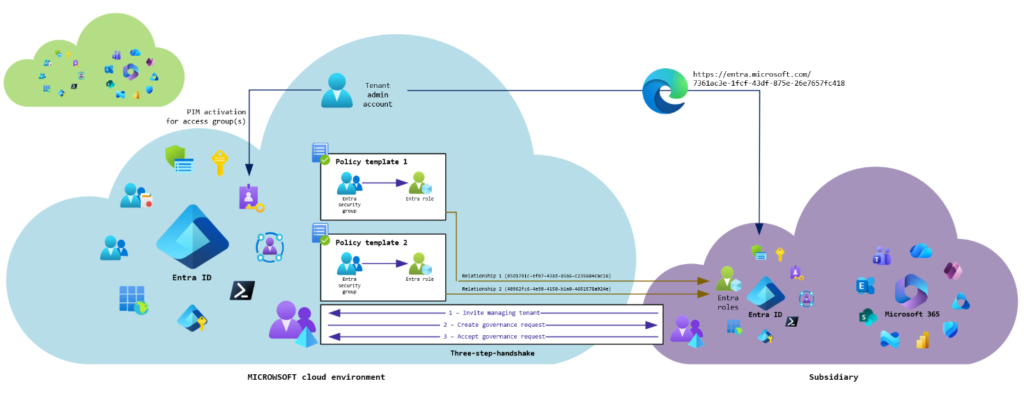
Step 1: Create users and groups
Additional objects are required in Entra ID to access the tenant(s) to be managed:
| Object type | Reason |
|---|---|
| User account | For security reasons, the administration of other tenants should not be carried out with an account that is already being used for other (productive or administrative) purposes. |
| Security group (role-assignable) | Security groups are required for the policy templates created in Entra Tenant Governance in order to assign access to the other tenant(s). These groups must be created role-assignable, as standard security groups are not selectable. |
A descriptive naming convention should be used for all object types, or the existing convention should be supplemented as needed. This makes it easier to track how these objects are used (e.g., using the abbreviation “ETG” for “Entra Tenant Governance”).
The security group(s) should also be integrated into Entra Privileged Identity Management so that access rights to other tenants are not granted permanently but are requested and activated only as needed. It is recommended to create a separate administration group for each tenant.
Important: Only one group can be assigned per relationship, to which all selected roles are then made available according to the policy template. If permissions are to be controlled granularly (i.e., multiple roles are not assigned simultaneously), a group, a policy template, and a relationship must be set up for each role.
Step 2: Enable related tenants discovery
Before relationships with other tenants can be established, automatic discovery must first be activated as follows:
- Open Entra Tenant Governance: Tenant management - Microsoft Entra Admin Center
- Click "Start discovery"
The automatic detection of connected tenants will now begin. This may take up to 48 hours.
Step 3: Allow invitations in managing tenant
In order for the tenants being managed to send an invitation to the central tenant, this must be explicitly permitted in the managing tenant as follows:
- Open settings for tenant governance: Tenant management - Microsoft Entra Admin Center
- Choose the option "Enabled" in the dropdown menu und click "Save"
Step 4: Create policy templates
To define which roles should be available for the tenant being managed, a policy template must be created as follows:
- Open policy templates: Tenant management - Microsoft Entra Admin Center
- Click "+ New template"
- Give a descriptive name and description, "Next"
- Click "+ Add assignment"
- Click "Choose roles" in the flyout menu and select the role(s) which should be assigned to the group
- Click "Choose group" afterwards and select the group created before
- "Next"
- Skip configuration for applications
- "Create"
These steps must be repeated for each role and tenant. The policy template is then selected and assigned in the next step when establishing the governance relationship.
Schritt 5: Create governance relationship
Unlike the GDAP model, the linking of tenants for central administration happens from within the tenant being managed. This means that the tenant being managed must send an invitation to the managing tenant.
- Open invitation menu: Tenant management - Microsoft Entra Admin Center
- Click "Send new invitation", enter the tenant ID or MOERA domain for the managing tenant in the flyout menu and click "Send invitation"
This is only required once to establish the connection. A governance request can then be initiated in the managing tenant.
- Open received invitations: Tenant management - Microsoft Entra Admin Center
- Click "Start governance request" on the right of the invitation
- Select policy template created before, "Next"
- "Create"
As a final step, the request must be confirmed in the tenant being managed:
- Open received requests: Tenant management - Microsoft Entra Admin Center
- Click the request ID and click "Accept" in the flyout menu
The creation and acceptance of the governance request must be repeated for each role and tenant. Administrative access to the tenant(s) to be managed is then possible.
Step 6: Verify access
You should then test access to the tenant you want to manage. It is assumed that the user is either permanently assigned to the relevant administration group or has activated membership in the group via Entra PIM. Access to the other tenant then works as follows:
- Start browser and enter URL for the admin center to be accessed in the following format: https://<portal URL>/<tenant ID for tenant to be managed>
Example: https://entra.microsoft.com/05d1781c-ef07-43ad-a5a6-c235684cac16
- Login with credentials for separate user account and verify access.
Note: Currently, the following portals are supported:
- Azure portal
- Entra Admin Center
- Intune Admin Center
- Exchange Online Admin Center
- SharePoint Online Admin Center
- Teams Admin Center
- Microsoft 365 Admin Center (not Apps Admin Center)
Comparison of GDAP and the governance relationship
It has already been mentioned in various places (blog posts, LinkedIn posts, etc.) that Entra Tenant Governance uses the GDAP model for assigning permissions. The official Learn article also states that these are GDAP relationships.
However, Entra Client Governance currently offers a significantly smaller feature set than GDAP. Furthermore, configuring relationships to support granular permission assignment is much more cumbersome than with GDAP. In the following table, I compare the two solutions:
| Feature | GDAP | Entra Tenant Governance |
|---|---|---|
| Management | Microsoft Partner Center | Entra Admin Center |
| Initiator of relationship | Microsoft partner/managing tenant | Tenant to be managed |
| Assignment of permissions | Granular (security group per role) | Granular (security group per role) |
| Special requirements for security groups | None (non-role-assignable groups also valid) | Role-assignable groups are mandatory |
| Configuration complexity | Medium (only one relationship per tenant required, assignment of groups within the relationship) | High (one relationship per role/group/tenant required) |
| Supported portals | All admin portals | Only Azure, Entra, Intune, Exchange, SharePoint, Teams and M365 |
| Access to portals | Centrally over Microsoft Partner Center and customer relationship | Decentralized; manual creation of the access link in the browser; the tenant ID of the tenant to be managed must be known |
| Support for Azure resource management | Yes, with special group principals | No |
| Maximum validity | 2 years with automatic extension (without "Global Administrator") 2 years with extension by 6 months (with "Global Administrator) | Unlimited (also when choosing "Global Administrator") |
| Cost | Free | Requires Entra ID Governance for full functionality |
In another article (still in preparation) I will discuss the GDAP model and its characteristics and limitations in more detail.
Liked this article? Share it!