Watch out! How sending from aliases can cause email filter policies to fail
 Krähe mit Hut
Sending from an alias is a great feature! Gone are the days when users had to use multiple mailboxes (or set up a workaround via the IMAP protocol) if they wanted or needed to use multiple sender addresses for their own mailbox. This might be necessary in the following scenarios, for example:
- An employee has a new email address due to a name change (marriage, divorce, etc.) but still wants to notify contacts of the change from the old email address.
- Users have been migrated to a new sender domain (e.g., as part of a company acquisition or split) and still need to be reachable and send emails from the old address.
While Exchange Server still does not offer this feature, it can be enabled in Exchange Online with a single click (or PowerShell command). The user can then simply select the alternate sender address in Outlook and send emails.
As long as the emails are sent directly from Exchange Online or via a third-party system, this works seamlessly. However, a special situation arises when Exchange Server is integrated into the message flow.
In this article, I describe special considerations that may arise in hybrid Exchange environments (i.e., Exchange Server + Exchange Online) when the “Send from Alias” feature is enabled.
Mail flow in hybrid environments
Before we get into the specifics, let’s briefly explain how the message flow works in a hybrid Exchange environment:
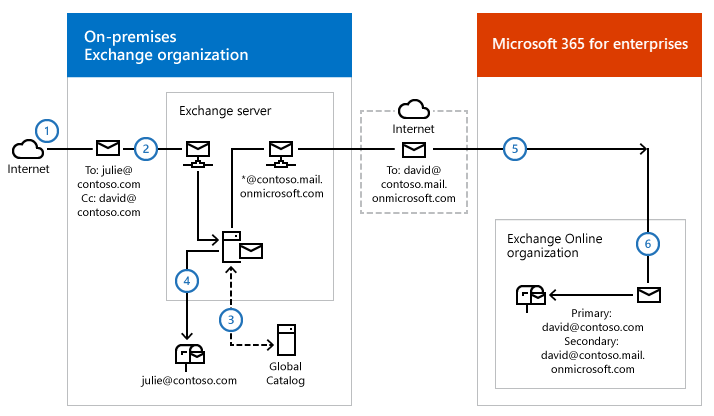
Within a hybrid Exchange organization, a so-called remote routing domain is used. This can be identified by the syntax ...mail.onmicrosoft.com.
Every mailbox in the organization has an alias with this domain. Exchange Server/Online can use this alias to route emails correctly, even if the mailbox is not located in the same organization (on-premises or in the cloud).
In the recipient’s mailbox, the address is converted back from the alias to the recipient’s primary email address. This makes the process transparent to users, and the remote routing address remains invisible.
Enable the feature "send from alias"
For a change, enabling this feature is relatively simple:
- Open the Exchange Online Admin Center: Exchange admin center
- Select “Mail flow”
- Under “General,” check the box next to “Turn on sending from aliases” and click “Save” at the bottom.
PowerShell:
# Connect to Exchange Online
Connect-ExchangeOnline -ShowBanner:$False

# Enable send from alias
Set-OrganizationConfig -SendFromAliasEnabled $TrueSpecial considerations when sending from alias
The “Send As” feature causes unusual behavior in this context. The process of updating the remote routing address to match the actual recipient's address no longer works. Microsoft has already confirmed this issue, but as of June 2026, there is still no solution: Sending From Email Aliases – Public Preview | Microsoft Community Hub
This has several implications, which are described below.
Out-of-office replies
If an employee has configured the out-of-office assistant for their mailbox and sends automatic replies to senders, the out-of-office message will display the remote routing address (...mail.onmicrosoft.com) to the sender instead of the mailbox’s primary email address (...@contoso.com).
This is problematic for the following reasons:
- The sender receives an address that is not intended for sending email. While the sender can also send messages to this address, this is not the intended purpose.
- Microsoft has already announced plans to restrict the productive use of such domains (Limiting Onmicrosoft Domain Usage for Sending Emails | Microsoft Community Hub). It is therefore conceivable that sending emails from external sources will no longer work at a later date.
- Information that could potentially be classified as sensitive is being disclosed. The remote routing domain (contoso.mail.onmicrosoft.com) essentially corresponds to the client’s MOERA domain (contoso.onmicrosoft.com; Microsoft Online Email Routing Address), which is initially created when the client is set up. This therefore allows for identification of the client and the access URLs for Microsoft 365 services (e.g., for the SharePoint Admin Center).
There is currently no workaround for this. The only options available are:
- Replace Exchange Server and have emails sent directly from Exchange Online, or stop using Exchange Server as a mail relay.
- Disable the “Send from Alias” feature if it is not possible to remove Exchange Server.
Email filtering in Exchange Online Protection und Defender for Office 365
Exchange Online offers built-in protection against spam, malware, and phishing through Exchange Online Protection (EOP). Defender for Office 365 (MDO) adds protection against malicious links and attachments.
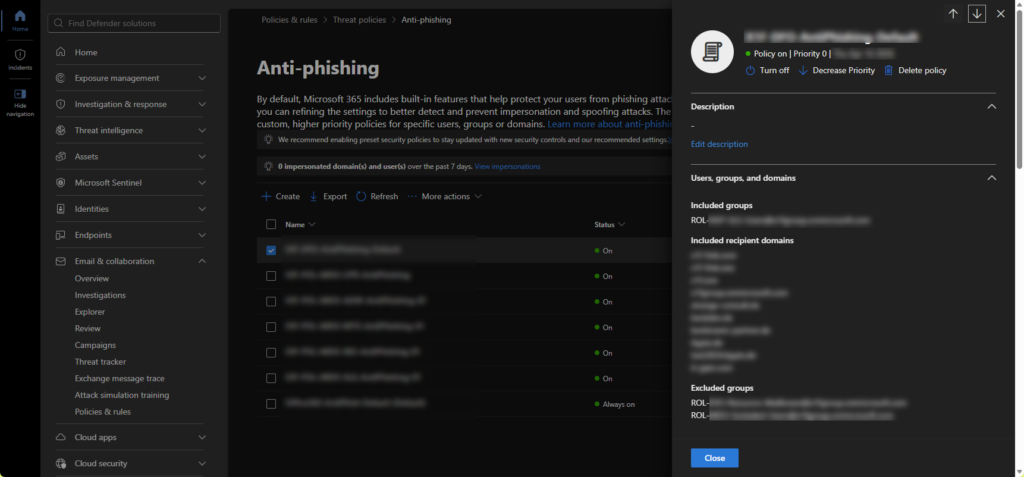
If these services are used actively (in place of or in addition to third-party products), corresponding custom policies are typically created.
Since such policies should be applied as comprehensively as possible, the company’s own domains are usually included in these policies, as shown in the example in the adjacent image.
However, often only the user-defined domains are added, and not the MOERA or remote routing domains, since these are not normally used in production.
However, if the “Send from Alias” feature is enabled, the employee's recipient address is no longer modified as described above but remains on the remote routing domain. This, in turn, means that the policies in EOP and MDO are no longer applied, allowing malicious emails to be delivered. If the junk email feature in Outlook is also disabled (as is often the case when other solutions are used), there is no protection left at all!
Fortunately, this can be resolved by adding the remote routing domain—and ideally the MOERA domain as well—to all policies. Then the protection will also apply to these domains (and aliases).
Liked this article? Share it!