
Run scripts with confidence - using code signing certificates!
 Krähe mit Hut
On the one hand, PowerShell is a fairly powerful tool for automation. On the other hand, Microsoft and other vendors now expect users to have a basic understanding of how to use PowerShell.
Some functions aren’t even available in a graphical interface at all, but must always be modified using PowerShell. It’s also reasonable to assume that this trend will increase, since it doesn’t make sense to provide a (potentially quite complex) configuration option for every function.
Therefore, it makes perfect sense to familiarize yourself with PowerShell. A PowerShell script is quick to build once you understand the syntax.
However, since such scripts can also cause some damage, Microsoft has deliberately built in some safeguards to prevent scripts from being executed just like that. One example is the so-called execution policies.
What are PowerShell execution policies?
PowerShell execution policies can be used to define whether and under what circumstances a script may be executed. This can even be defined separately for the computer account and the logged-in user, since scripts can be executed in both contexts.
Did you know? When a PowerShell script is executed in the context of the computer account, the script has access to the permissions of the SYSTEM account. This principal even has more rights than an administrator account! Therefore, the execution policy for computer accounts should always be stricter than for user accounts.
The following policies can be configured:
| Policy | Effects |
|---|---|
| AllSigned | Scripts can be executed, but must always be signed with a trusted certificate. |
| Bypass | No restrictions (intended only for specific scenarios, see below) |
| Default | Resets any differing settings to the default setting (RemoteSigned) |
| RemoteSigned | Scripts not created on the local computer must be signed. Scripts created locally on the computer can be run without a signature. |
| Restricted | Scripts and corresponding module script files cannot be executed. |
| Undefined | No specific execution policy is defined, therefore Restricted (Windows clients) or RemoteSigned (Windows Server) is used. |
| Unrestricted | No restrictions |
The "Bypass" policy is not intended for permanent configuration, but is used to allow the one-time execution of an unsigned script:
# Run an unsigned script once and bypass the PowerShell execution policy
PowerShell.exe -ExecutionPolicy Bypass -File '<Path\to\script>.ps1'Important: An execution policy does not prevent a PowerShell window from opening and the contents of a script from being copied into it!
It would be possible, in principle, to set the execution policy to "Unrestricted" for both computers and users. However, this significantly reduces security and is therefore not recommended. It is better to use the "AllSigned" policy, as this offers the best compromise between flexibility and security—scripts can be executed, but they must be digitally signed.The execution policy can be set via Group Policy (and also via Intune):
Computer Configuration > Policies > Administrative Templates > Windows Components > Windows PowerShell > Enable script execution
User Configuration > Policies > Administrative Templates > Windows Components > Windows PowerShell > Enable script execution
Enabled, Script execution policy > Allow only signed scripts
This ensures that only signed scripts are allowed. But how does the signing process actually work?
Provide a code signing certificate
Für das Signieren von PowerShell-Skripten benötigt man ein sogenanntes Codesignatur-Zertifikat. Ein solches Zertifikat kann nicht nur zum Signieren von Skripten, sondern für jegliche Form von Code verwendet werden, bspw. auch Applikationscode und digitale Makros in Office-Anwendungen.
Sources of supply
The certificate can be obtained in the following ways:
| Source | Conditions |
|---|---|
| Öffentlicher Anbieter | - Fee applies, starting at 299€ - Maximum validity: 15 months |
| Unternehmensinterne Zertifizierungsstelle | - Free of charge - Maximum validity depending on company specifications |
| Selbstsigniert | - Free of charge - Maximum validity freely selectable - Needs local administrator permissions |
Creating and using a self-signed certificate is generally not recommended, as such a certificate cannot be considered trustworthy. However, it may be a simple alternative in isolated or test environments.
Retrieving/creating a certificate
The following chapters discuss the necessary steps for retrieving or creating a code signing certificate, depending on the chosen source.
Important: Depending on company policies, it may be necessary to establish a four-eyes principle for the use of such a certificate. A code signing certificate allows the signing of any code – it is therefore not possible to restrict its use to PowerShell scripts or macros. Furthermore, when signed code is shared with other companies, they assume that the code is trustworthy. Accordingly, such a certificate must not be circulated but must be protected from unauthorized access!
Tip: A certificate used for general-purpose applications and scripts should never be issued to a real person, as they might leave the company. In such cases, a dedicated service account should be set up to centrally sign these applications and scripts and to perform regular renewals.
Public provider
To obtain a code-signing certificate from a public certification authority, you can use the website https://www.certum.eu/en/code-signing-certificates/, for example. This site provides a central overview of common providers, allowing for a direct comparison.
To purchase a certificate, you must open an account with the provider. Additional steps may also be required to validate the company, such as adding DNS records to the company’s public DNS zone. The code-signing certificate itself must typically be issued in the name of a real employee.
The advantage of using a public provider is that the certificate chain for validating the certificate’s validity is accessible from anywhere. This allows macros, applications, and scripts signed in this way to be used externally or in other companies.
Internal certification authority
If the company has an internal certification authority, a code-signing certificate can be made available through this certification authority with minimal effort (provided that company policies permit its issuance). To do this, a suitable certificate template must first be created in the certification authority. Access to this should be controlled via Active Directory security groups per permission to ensure granular rights assignment (e.g., “Read,” “Enroll” “Auto-enroll”).
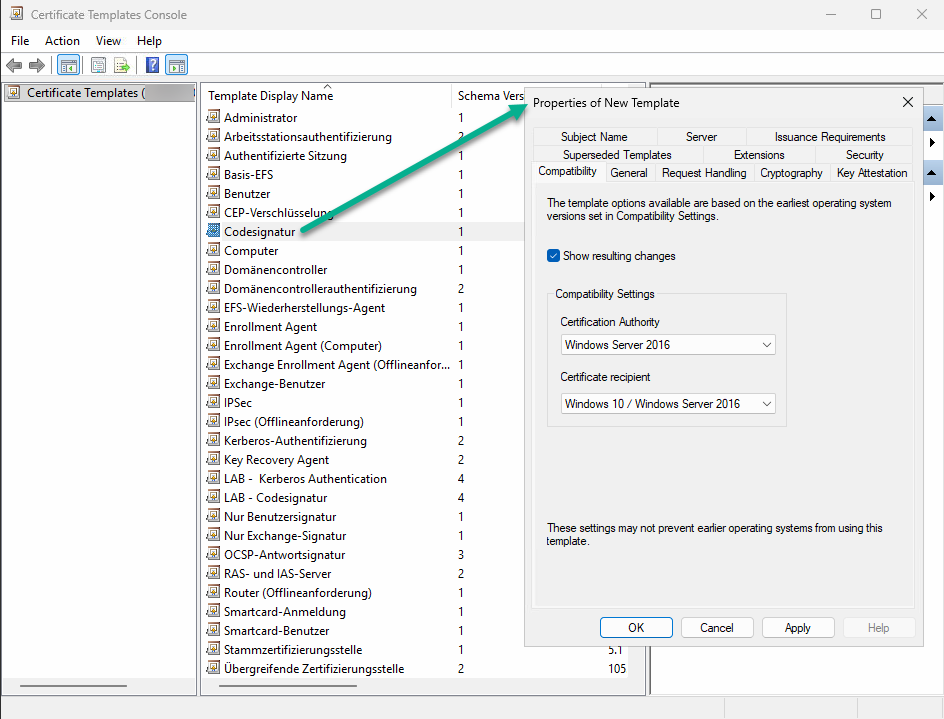
- On a system where the Certificate Authority management tools are installed, open the Certificate Templates console (certtmpl.msc)
- Right-click the “Code Signing” template and select “Duplicate”
- Configure the template properties according to company guidelines and assign a name; the following tabs are typically relevant:
- Compatibility (select current versions)
- Cryptography (use the most current algorithm and hash function possible, e.g., ECDSA_P256 and SHA256)
- Security (add previously created Active Directory groups and assign the appropriate permissions)
For security reasons, the “Allow exporting private key” option should not be enabled, so that the certificate can only be used on the system on which it was requested.
The certificate template must then be deployed in the certificate authority as follows:
- Open the certificate authority console
- Right-click on “Certificate Templates” and select “New > Certificate Template to Be Issued”
- Select the newly created template from the list
If authorized users have been granted the “Auto-enroll” permission, they should receive a certificate after logging in again. If users are to retrieve a certificate manually, proceed as follows:
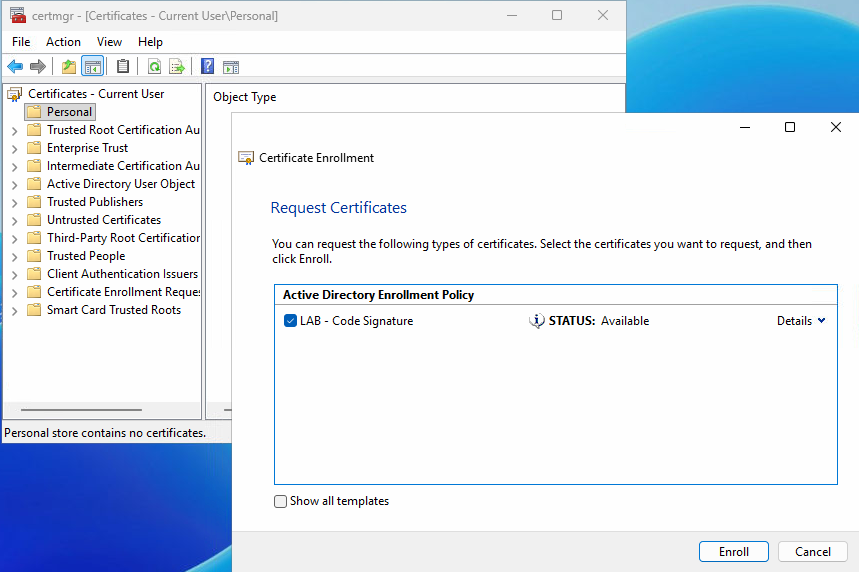
- Open the Certificate Manager for users (certmgr.msc)
- Right-click “My Certificates,” then select “All Tasks > Request New Certificate…”
- Click Next until the available certificate templates are displayed, then select the new certificate template
- “Register”
If everything has been configured correctly, the user now has a certificate that can be used to digitally sign any type of code.
Self-signed
If there is no budget to purchase a certificate from a public provider and no internal certification authority is available, you can also create and use a self-signed certificate. To do this, you can use a script that you’ll find in my script nest.
The script prompts you for the required parameters, such as the algorithms to be used, the validity period, and the intended use. The script can be used not only for creating code-signing certificates but also for other purposes.
Distribution of the public key
Unabhängig von der Bezugsquelle muss der öffentliche Schlüssel des Zertifikats auf alle Systeme verteilt werden, auf den damit signierter Code ausgeführt werden soll. Bei der Ausführung wird Regardless of the source, the certificate’s public key must be distributed to all systems on which code signed with it is to be executed. This is because, during execution, not only the validity of the certificate but also the trustworthiness of the issuer is verified. And this verification triggers a warning if the certificate is not available in the local certificate store.
Therefore, the public key must be exported and distributed as follows:
- Open the Certificate Manager for Users (certmgr.msc)
- Expand “My Certificates > Certificates,” right-click the certificate, and select “All Tasks > Export…”
- Leave “No, do not export the private key” selected and complete the wizard
The certificate must now be distributed to all systems on which code signed with it is executed. This can be done manually or automated via Group Policy/Intune. Über ein Gruppenrichtlinienobjekt funktioniert dies wie folgt:
Computer configuration > Policies > Windows settings > Security settings > Public key policies
Unter “Vertrauenswürdige Herausgeber” den öffentlichen Schlüssel des Zertifikats importieren
- Import public key of certificate into "Trusted publishers"
- Import public key of certificate into "Trusted root authorities" (required if the certificate is used to sign RDP files)
Sign PowerShell scripts
Once all requirements have been met, scripts can now be signed using the certificate. This is done using PowerShell:
# Retrieve certificate from local store with the purpose "code signing"
$Cert = Get-ChildItem -Path Cert:\CurrentUser\My -CodeSigningCert

# Sign single PowerShell script
Set-AuthenticodeSignature -FilePath '<Path\to\script>.ps1' -Certificate $Cert

# Sign all scripts inside a folder
$ScriptPath = '<Path\to\script>'
$Scripts = (Get-ChildItem -Path $ScriptPath).Name
ForEach ($Script in $ScriptPath){Set-AuthenticodeSignature -FilePath $ScriptPath\$Script -Certificate $Cert}
Liked this article? Let others know!



2 thoughts on “Run scripts with confidence - using code signing certificates!”