
Practical Tip #01 - Assemble certificate keys into a PFX file
 Krähe mit Hut
Problem: A certificate is provided as separate files for the public key (CER, CRT) and the private key (KEY). However, a combined file (PFX) is required.
Task: Combine the separate files into a single PFX file
Option 1: Using a web-based solution
Providers such as SSLShopper offer various solutions for managing certificates, such as an SSL converter. This tool allows you to conveniently combine the separate files into a single PFX file. However, this process involves transmitting the private key to the provider, which poses a security risk (even if the transmission is encrypted). This method is therefore only suitable for non-critical certificates, such as those used in test systems unrelated to the company.
The following steps illustrate this using SSLShopper as an example:
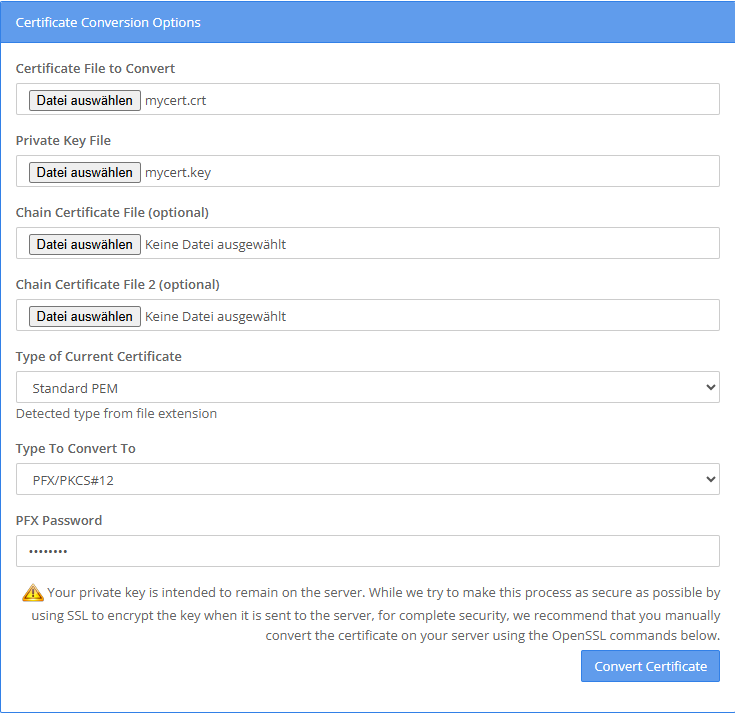
- Go to the website: SSL Converter - Convert SSL Certificates to different formats
- Under “Certificate File to Convert,” select the file containing the public key (CER, CRT)
- In the “Type To Convert To” drop-down menu, select the “PFX/PKCS#12” option
- Under “Private Key File,” select the file containing the private key (KEY)
- In the “PFX Password” field, enter a password to access the PFX file
- “Convert Certificate”
If the data is valid, a PFX file will be generated and downloaded to your local computer.
Option 2: Using a command-line-based solution (Windows)
Windows provides a command-line tool called certutil. This tool is actually intended for managing a Windows-based certificate authority, but it is available in every Windows operating system. Accordingly, it can be used not only on servers but also on end-user devices.
Among other things, this tool can be used to combine separate keys into a single PFX file. The certificate files must have identical names (for example, mycert.crt and mycert.key), as the tool requires the files to have the same filename. The merging can then be performed using the following command—a password must also be specified. For security reasons, the password is not visible as you type it:
:: Switch to directory containing certificate files, e.g. cd %USERPROFILE%\Downloads
cd "<Path>\<to the files>"

:: Merge files, e.g., certutil -mergepfx mycert.crt mycert.pfx
certutil -mergepfx <file name>.crt <target file name>.pfxThe new file will then be created in the same folder.
Option 3: Using a command-line-based solution (Windows or Linux)
If a Linux system is available for configuration, OpenSSL can be used. This solution can also be used on Windows if certutil does not work for any reason. On Windows, however, OpenSSL must first be downloaded and installed separately. Regardless, the following commands are used for creation. A password must be entered; for security reasons, it will not be displayed:
openssl pkcs12 -export -out <target file>.pfx -inkey <private key>.key -in <public key>.crtYou may need to navigate to the folder containing the files before running the program.
Liked this article? Share it!