
The Microsoft Cloud can't handle mass emails! ...Or can it...?
 Krähe mit Hut
Email remains a widely used means of communication—even though it has since been surpassed by instant messaging solutions such as Teams, Slack, and many others. Many companies use Exchange Server, Exchange Online, or a combination of the two (known as a hybrid deployment) for this purpose.
At some point, the need to send bulk emails may arise. Examples include:
- Marketing campaigns
- Event invitations
- Surveys
- Newsletters
The issue with mass emails
In this scenario, emails are sent to a large number of recipients (four- to five-digit numbers, possibly even more) in a short period of time. This places a very high load on the sending system. On the other hand, central security systems often flag such actions as spam attacks. This poses particular challenges for the operators of the sending infrastructure.
Since Exchange Online is a multi-tenant system, Microsoft must ensure that issues affecting individual customers do not impact all customers. As a result, there are certain limits on sending volume and performance. In the past, this consistently led to the statement: “If you need to send bulk emails, you’ll need a third-party product or an on-premises Exchange server.” Is this still the case? Let’s find out!
Why Exchange Server can be a solution
If the company still has a current (i.e., Subscription Edition, SE) Exchange Server that can continue to be operated, it could be used for mass mailings.
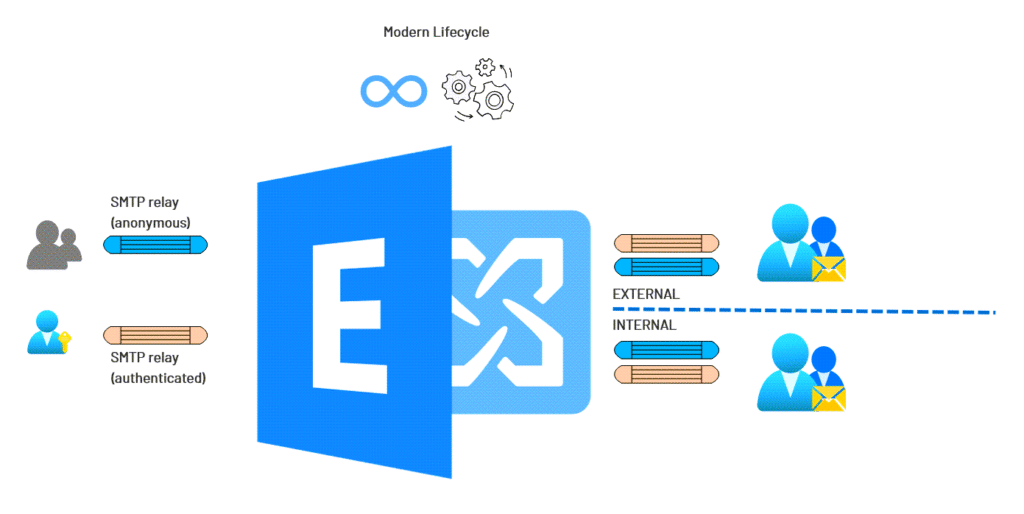
An Exchange Server offers a high degree of flexibility when it comes to connecting systems and sending emails:
- Applications and systems can send emails with or without authentication (although authenticated sending is always recommended).
- Basic authentication (now considered insecure) can be provided, as it is still supported by some applications and systems as the only method.
- Emails can be sent to both internal and external recipients.
- Limits can be individually configured or disabled.
- The server’s hardware configuration can be flexibly adapted to meet growing demands.
Unless you have a licensed or up-to-date Exchange Server, setting up an Exchange Server solely for sending email is generally not recommended. An Exchange Server requires a certain amount of maintenance and adds complexity. In such cases, other solutions—and, if necessary, third-party products such as Postfix—may be more suitable.

Mass emails in the Microsoft Cloud
There is still a widespread belief that mass emails are not possible in the Microsoft Cloud. However, if you take a look at the currently available options and limitations, you might come to a different conclusion. Let's take a look at them.
Exchange Online
As mentioned earlier, Exchange Online is a multi-tenant system. Therefore, Microsoft must ensure that all customers are treated equally and cannot interfere with one another. As a result, there are some technical limitations. There are also security considerations that lead to restrictions on the available access methods. These are described in more detail in the following chapters.
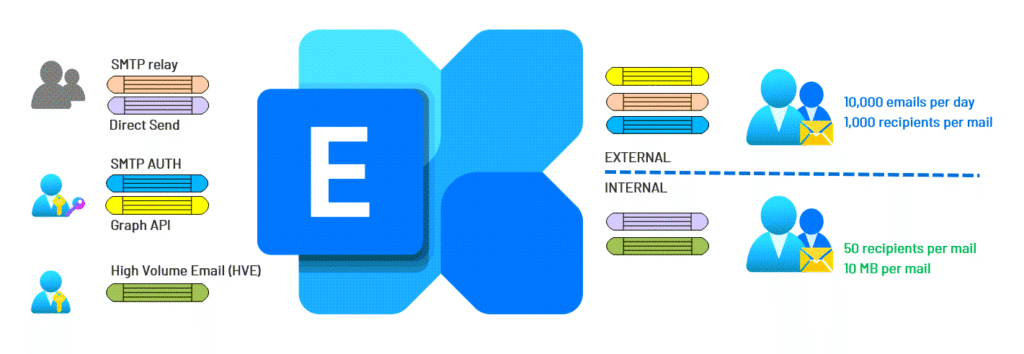
Sending limits
The following article provides a complete overview of all limits: Exchange Online limits - Service Descriptions | Microsoft Learn. For the purposes of this section, we will focus only on the sending limits that are relevant for bulk email. These are defined uniformly across all licensing packages as follows (as of July 2026):
| Area | Limit |
|---|---|
| Maximum number of emails from a mailbox | 10,000 per day |
| Maximum number of recipients | 1,000 per email |
| Maximum number of email aliases in a mailbox | 300 |
| Maximum rate of simultaneously sent emails | 30 per minute |
| Maximum number of recipients for encrypted emails | 200 |
Aus dieser Tabelle wird ersichtlich, dass ein Massenversand von E-Mails zumindest in kleinerem Umfang This table shows that bulk email distribution is, in principle, possible—at least on a smaller scale and with additional measures. For example, if the total number of emails is assumed to be 50,000, the distribution could be divided as follows:
- 10 batches per day, each with 1,000 recipients
- Repeat these batches for 5 days
However, this approach is only suitable if it is not a problem that the recipients do not all receive the emails at the same time. If this is a requirement, Exchange Online is not a suitable solution.
Access methods
Exchange Online offers several ways to send emails from applications and systems. These are described in detail in the following article: How to set up a multifunction device or application to send email using Microsoft 365 or Office 365 | Microsoft Learn
The following table summarizes the most important criteria:
| Area | SMTP client submission | SMTP relay | Direct Send | High Volume Email (HVE) |
|---|---|---|---|---|
| How it works | Authentication to Exchange Online using an existing licensed mailbox or a shared mailbox (Graph only) | Authorization of one or more public IP addresses for sending via Exchange Online; additional validation via certificate is possible | Enable one or more public IP addresses for sending via Exchange Online without additional validation; restrictions can be applied via transport rules | Authentication to Exchange Online via a special mailbox configured for HVE |
| Cost | At least Exchange Online Plan 1 for the mailbox in use | None | None | Billing based on usage per email sent (0.000042 USD) |
| Send to external recipients | Yes | Yes | No | No |
| Connect 3rd party providers | Yes | No | Yes | Yes |
| TLS required | Yes | No (optional) | No (optional) | Yes |
| Authentication required | Yes (username/pass word) | Yes (static public IP address) | No | Yes (HVE username/pass word) |
| Mass email possible | Yes, in accordance with the defined limits | No | No (throttling) | Yes |
The table makes it clear that only the “SMTP client submission” method is suitable for bulk mailings to external recipients. All other methods either do not support bulk mailings or support them only for internal recipients.
Provided that the applicable limits and the associated additional steps are deemed acceptable, SMTP client transmission can be used for bulk mailings. However, the sending system should already support modern authentication via OAuth/Graph for this purpose. This ensures that mail delivery will continue to function even after SMTP AUTH is disabled.
Configure SMTP client submission
To set up SMTP client transmission, follow these steps (summarized below):
- Provide a licensed mailbox (when using SMTP AUTH) or a shared mailbox (when using Graph)
- When using a licensed mailbox:
- Enable per-user MFA for the user account (Per-user multifactor authentication - Microsoft Entra admin center)
- Register the MFA method (My Account)
- Exclude the user account from conditional access rules (otherwise, an app password cannot be created)
- Create an app password (My Sign-Ins | Security Info | Microsoft.com)
- When using a shared mailbox:
- Add an app registration in Entra ID; do not grant any Graph permissions! (App-Registrierungen - Microsoft Entra Admin Center)
- Create an email-enabled security group in Exchange Online and add the shared mailbox (Active groups - Exchange admin center)
- Create an administrative domain using Exchange Online PowerShell
- Create a service principal using Exchange Online PowerShell and link it to the app registration
- Create a role assignment using Exchange Online PowerShell and grant the necessary access rights there
- Configure the application or system according to the selected authentication method (SMTP host: smtp.office365.com, port 25)
- When using a licensed mailbox:
Azure Communication Services
The Microsoft Cloud isn’t limited to Microsoft 365. Microsoft Azure represents a much larger part of it. Put simply, it’s a data center in the cloud. Just like in an on-premises data center, infrastructure components such as networks, virtual machines, storage, and so on can be deployed here.
In addition, a wide variety of services can be deployed, each offering a diverse range of functions. This eliminates the need to first set up, configure, and maintain a virtual machine. Instead, you simply deploy the desired service—such as a web server, a container platform, or a key vault—and can use it right away. Microsoft handles the maintenance of the underlying platform.
One of these services is Azure Communication Services (ACS). Among other things, this service can be used to provide a central platform for sending SMS and email. It also offers additional features for direct communication via phone and instant messaging apps such as Teams and WhatsApp.
ACS may be worth considering if the limitations in Exchange Online and the associated additional steps are deemed insufficient or impractical. An Azure subscription is required to set it up. This can be obtained either directly from Microsoft or, just like Microsoft 365 licenses, through a CSP partner.
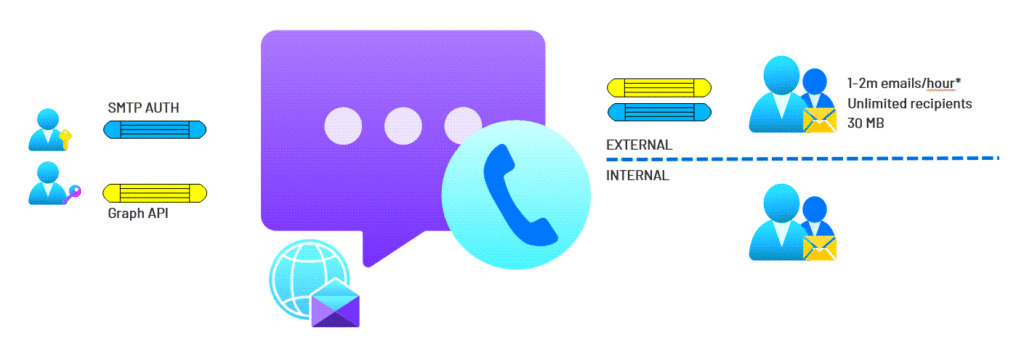
Sending limits
There are also limits for ACS. However, specifically for emails, these limits are much higher than in Exchange Online. A complete overview of all limits can be found here: Service limits for Azure Communication Services - An Azure Communication Services article | Microsoft Learn
The following table shows the limits for sending email from custom domains (i.e., domains owned by the company, not those provided by Azure):
| Process | Time frame (minutes) | Number of emails |
|---|---|---|
| Send email | 1 | 30 |
| Send email | 60 | 100 |
| Get email status | 1 | 60 |
| Get email status | 60 | 200 |
In addition, the following size restrictions apply:
| Area | Time frame (minutes) |
|---|---|
| Number of recipients per email | 50 |
| Maximum email size | 10 MB |
| Maximum number of authentication requests | 250 |
| Maximum number of sender aliases | 100 per domain |
| Maximum number of sender domains | 100 per ACS resource |
This may seem strange at first, since these limits do not allow for mass mailings. However, these are default limits that can be increased by submitting a support request to Microsoft. Microsoft explains the reasons for this approach in the following article: Quota increase for email domains - An Azure Communication Services concept document | Microsoft Learn
The goal here, too, is to prevent a system—or even Microsoft Azure—from ending up on a spam filter provider’s blacklist. Accordingly, gradually increasing the limits ensures that the sending system continues to be classified as trustworthy. Otherwise, if a new system suddenly sends a large number of emails, it is typically assumed to be sending spam.
In this way, the limits can be increased as follows:
- Up to 1–2 million emails per hour
- Up to 30 MB message size
- Unlimited number of recipients
ACS usage is billed on a pay-as-you-go basis:
- €0.00022 per email sent
- €0.00011 per MB
Access methods
ACS supports the following methods for establishing a connection:
| Area | SMTP client submission | Access key | Entra ID authentication |
|---|---|---|---|
| How it works | Authentifizierung über Benutzernamen und Kennwort (Clientgeheimnis in einer App-Registrierung in Entra ID) | Verwendung des von ACS bereitgestellten Zugriffsschlüssels | Verwendung eines Entra ID-Benutzers, einer verwalteten Identität oder eines Dienstprinzipals in Verbindung mit einem Clientgeheimnis oder Zertifikat |
Ideally, applications and systems should use a service principal provided through app registration. Using a certificate is recommended for authentication, since a client secret is essentially a password and is therefore considered potentially insecure.
For applications and systems that do not support this, traditional authentication using a username and password can be provided as an alternative. Authentication also takes place in the background via an app registration; the password is provided via a client secret.
Deploy Azure Communication Services
To deploy ACS, the following steps must be performed (in broad terms):
- Create a resource group to contain the individual components of the service
- Deploy the following services one after another from the Marketplace: Marketplace - Microsoft Azure
- Communication Services
- Email Communication Services
- Create an app registration in Entra ID (without specific permissions)
- Grant permissions to the app registration via IAM for Communication Services (permissions: Set up SMTP authentication for sending emails - An Azure Communication Services article | Microsoft Learn)
- Create a client secret for the application to be connected
- Access the newly created Email Communication Service
- Add the desired sending domain and configure SPF and DKIM as required
- Access the sending domain and add a sender address
- Access the newly created Communication Service
- Connect the sending domain (SPF and DKIM validation must be fully successful!)
- If necessary, add an SMTP username for SMTP client transmission
- Configure the application or system with the necessary data (SMTP host: smtp.azurecomm.net, port 587 or 25)
Comparison of solutions
So which solution is best for which use case? The following table lists some criteria that can help you make a decision:
| Criterion | Exchange Server | Exchange Online | Azure Communication Services |
|---|---|---|---|
| Operations | - Full | - Usage/Maintenance as a SaaS Service | - Setup and Use as a PaaS Service |
| Cost | - Server license - User CALs for SMTP client submission | - Depending on the scenario (user license or usage-based billing for HVE) | - Per email sent |
| Authentication | - Anonymous - Basic authentication | - Anonymous (internal recipients only) - Basic authentication (until approx. end of 2027) - Modern authentication | - Basic authentication - Access key - Entra ID |
| Email discaimers | - Yes (transport rule and third-party solution) | - Yes (transport rule and third-party solution) | - No (the disclaimer must be provided by the sending system) |
| Mass emails | Yes (no limits) | - Limited (10,000 mails, 1,000 recipients) | - Yes (gradual increase in thresholds) |
| Usage scenarios | - No cloud services in use - Email disclaimer required - Systems do not support (modern) authentication | - No Exchange Server available - Email disclaimer required - <= 10,000 bulk emails - Bulk emails only to internal recipients (HVE) - All systems support modern authentication | - > 10,000 mass emails - Mass emails to external recipients - Basic authentication after 2027 - No desire to operate a local solution - “Documentation” of the sending systems |
One particular issue is the handling of email disclaimers. If the company is required to include a signature in all outgoing emails, this may be a reason to exclude ACS. This depends on the capabilities of the sending system.
What are the alternatives?
The SendGrid solution from Twilio is a good alternative if you don't absolutely have to use a Microsoft solution or an on-premises solution. It enables bulk email sending in compliance with SPF and DKIM, automatic addition of company signatures, and much more.
Liked this article? Share it!