Reach your goals faster - with direct download links to Entra products!
 Krähe mit Hut
In my customer projects, I frequently need resources that can only be found in the Entra Admin Center. Sometimes Microsoft also moves products from the public Download Center to pages that require sign-in. This happened, for example, with Entra Connect Sync.
However, there are a few tricks I’d like to share here that let you access the downloads directly—without having to go through the lengthy sign-in and authorization process on the Admin Center. They aren’t anything spectacular, so don’t expect too much. 😉
The whole thing works because Microsoft doesn’t update the download links with every new version. Instead, it’s always the same download link, which automatically points to the latest version in the background. Another key point here is that even though the download link includes the tenant ID, these aren’t special versions tailored to your specific environment. It’s always a generic product that can be used with any tenant!
Important: The methods shown here are provided without guarantee! Microsoft may change the functionality without notice, rendering the links unusable.
The "hovering mouse cursor" trick

Some download links can be revealed simply by hovering the mouse pointer over the button.
The browser will then display the download link at the bottom of the page, and you can copy it down. You can then create a bookmark that allows you to access the download directly.
The "copy link" trick
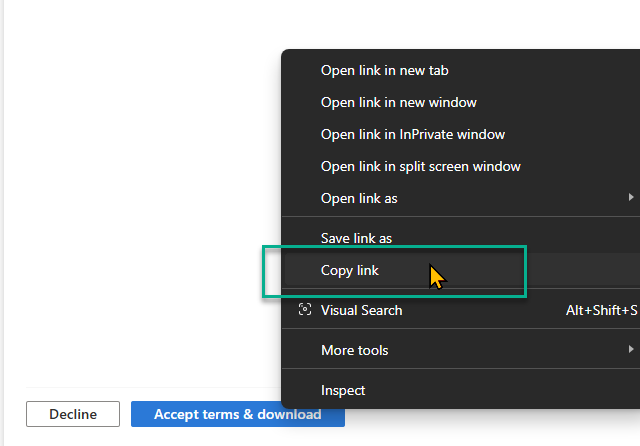
Some download links can be revealed simply by hovering the mouse pointer over the button.
The browser will then display the download link at the bottom of the page, and you can copy it down. You can then create a bookmark that allows you to access the download directly.
The "developer" trick
Modern browsers have a developer mode or section, typically opened with F12. If the above tricks don't work, this might reveal the download link. However, depending on the button's design, this can be somewhat complicated.
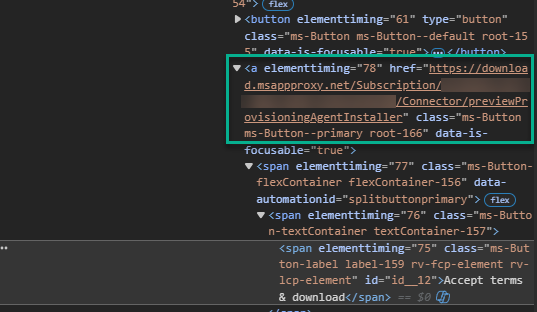
- Right-click the button and select “Inspect.” This will launch Developer Tools and open the source code directly at the location of the button.
- Right-click the link and select “Copy” to copy it from the source code—you can then use this to create a bookmark that allows you to access the download directly.
If developer mode cannot be opened directly at the button, it can alternatively be launched by pressing F12. However, you will then need to search through the code accordingly.
You can start a search using the magnifying glass icon at the top (you may need to click “More Tools” first). This is useful if you know part of the URL.
A simple search for “https://” usually won’t work, as this appears very frequently on websites.
At a glance - current download links
To save you the trouble of manually searching for all the links, I've compiled them in the table below. You'll need your client ID for your Entra ID. You can find it at the following link: Microsoft Entra Admin Center
This table is not exhaustive. If you have or need any further links, please leave a comment!
Important: Whether a download works or not may also depend on your licensing, as certain features require Entra ID P1 licenses.
| App/Resource | Download link |
|---|---|
| Entra Application Proxy | https://download.msappproxy.net/Subscription/<Mandanten-ID>/Connector/DownloadConnectorInstaller |
| Entra Cloud Sync Agent | https://download.msappproxy.net/Subscription/<Mandanten-ID>/Connector/previewProvisioningAgentInstaller |
| Entra Connect Sync | https://download.msappproxy.net/Subscription/<Mandanten-ID>/Connector/AADConnectSyncInstaller |
| Entra Global Secure Access Client | https://aka.ms/GlobalSecureAccess-windows |
Liked this article? Share it!