
Microsoft 365 Migrations | Part 9: Analyzing the environments
 Krähe mit Hut
The current state analysis is a key component of any migration project. It is necessary to determine which resources need to be migrated and what steps this entails for preparing and executing the migration. This also depends on which migration solution was selected, since not all solutions offer the same range of features. As a result, additional steps may need to be taken into account.
This article describes possible approaches to the analysis, as well as typical questions and obstacles that may arise in the process.
Data collection
There are several approaches to data collection. This depends on the answers to the following questions:
Regardless, I personally prefer to take a multi-step approach in my migration projects whenever possible:
- Generating reports using Microsoft 365 DSC
- Capturing detailed configurations using PowerShell scripts
- Manual analysis via the various admin portals
This approach covers several tasks simultaneously:
- Documentation of the initial state
- Traceability of which analyses have been performed and which, if any, are still missing
- A comprehensive overview of the steps required to prepare for and execute the migration
The individual approaches are described in more detail below.
Microsoft 365 DSC
Using automation tools is a quick way to assess the current state of both the source and target environments. These tools typically use PowerShell to gather information. Microsoft provides a free solution for this called Microsoft 365 DSC (Introduction - Microsoft365DSC - Your Cloud Configuration).

M365 DSC is not explicitly designed for Microsoft 365 migrations; rather, it is used to create backups of a tenant’s configuration and to automatically resolve or flag any deviations from it. It is also possible to compare the configurations of two tenants and identify or transfer changes. This is useful, for example, for separate test environments whose configuration should be kept as close as possible to the production environment.
This functionality can also be used to determine the current state of the source environment as well as discrepancies between the source and target environments during a Microsoft 365 migration. Reports can be generated in various formats (CSV, HTML, Excel, Markdown, or JSON).
The procedure is as follows:
- Create an app registration in Entra ID with the necessary permissions (recommended, as this is supported by all services)
- Create a configuration export (Tip: On the Microsoft365DSC - Configuration-as-Code for the Cloud website, you can select the contents of the export in detail and generate the necessary command)
- Create a report from the configuration export
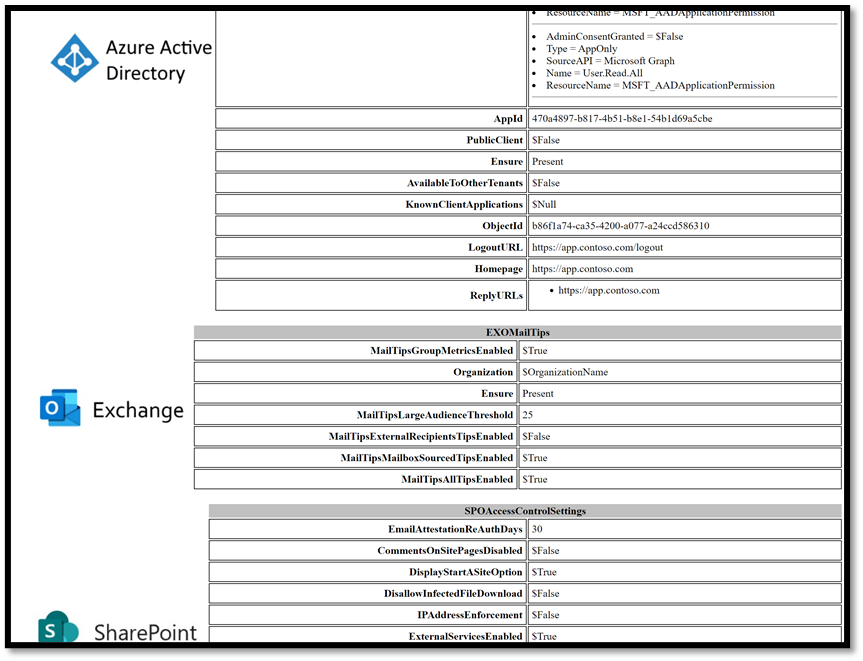
An example of an M365 DSC HTML report looks like this:
Capturing detailed configurations using PowerShell
The report generated by M365 DSC can be very extensive. At the same time, not all of the information collected is relevant to a migration. On the other hand, important detailed information required for the migration is missing. This is understandable, since such information is not necessary for the intended use of M365 DSC (service settings and alerts/automatic reconfiguration in the event of a deviation).

For this reason, I have created a collection of scripts that I use to save important detailed information in export files. There are several reasons for this:
- To document the initial state of detailed configurations so that they can be replicated either exactly or as closely as possible in the target environment.
- Handover to the current operations team to identify migration requirements or to clean up resources that are no longer needed.
The following table lists the scripts and their respective purposes. I haven't added them to my script repository yet, but I'll do so gradually as the scripts become ready for public viewing. 😉
| Script | Area | Intended use(s) |
|---|---|---|
| Export-EIDGuestUsers.ps1 | Entra ID | Export all guest users. Guest users are not typically migrated; instead, they are re-invited to the target environment as needed. This list allows you to assess which guest users are still needed and should be notified accordingly. The export file contains useful information for this assessment, such as the invitation date, invitation status, and last modification date. |
| Export-EIDUserPhotos.ps1 | Entra ID | Export user photos for later import into the target environment. This is necessary if the migration solution is not (or cannot be) used to migrate user accounts, or if the photos are not transferred during the migration. |
| Export-EXOEmailAliases.ps1 | Exchange Online | Export email aliases for all mailboxes, distribution lists, and email-enabled security groups for later import into the target environment |
| Export-EXOEOPandMDOPolicies.ps1 | Exchange Online | Export policies in Exchange Online Protection and Defender for Office 365, if in use, for later manual recreation in the target environment |
| Export-EXOInboxAndForwardingRules.ps1 | Exchange Online | Export of inbox rules in mailboxes as well as server-side forwarding/redirect rules. The rules are exported solely as a precaution, since they are normally transferred by the migration solutions. However, in the event of errors, the export list may be consulted if necessary. |
| Export-EXOMailboxAccessPermissions.ps1 | Exchange Online | Export the “Send As,” “Send On Behalf Of,” and “Full Access” mailbox permissions. These permissions are exported solely as a precaution, since they are typically transferred by the migration solutions. However, if errors occur, the export list can be consulted if necessary. |
| Export-EXOPublicFolders.ps1 | Exchange Online | Export all Public Folders, if any. As a preparatory step, it is advisable to move Public Folders to shared mailboxes. If Public Folders are still needed, whether they are migrated or must be manually recreated depends on the migration solution. |
| Export-PPLAdminFlows.ps1 | Power Platform | Export admin flows from the Power Platform. While some migration solutions allow flows to be transferred, they must be manually adjusted in the target environment (e.g., connectors or URLs). The export list can also be used to assess which flows may no longer be needed. |
| Export-PVWPolicies.ps1 | Purview | Export all policies, such as retention and DLP policies. If necessary, these must be recreated later in the target environment and reapplied to the target resources. If you are using Microsoft Migration Orchestrator, you must also disable all policies, as they will block the migration. |
| Export-TMSChannelAddresses.ps1 | Teams | Export email addresses from Microsoft 365 groups and Teams channels. Typically, these email addresses are not actively used, and the groups and channels may be assigned new addresses after the migration. In the event that the previous addresses are still in active use, they can be restored as needed using the export list. |
| Export-TMSPhoneNumberAssignments.ps1 | Teams | If Teams calling is used, you can export the phone number assignments here. The export can be used to reassign the phone numbers in the target environment. |
Manual analysis
In addition to all the technical options, I also like to get a classic, hands-on overview of the source environment. To do this, I first request the Global Reader, Security Reader, and Azure Reader roles. These are sufficient for a rough overview at first.
If I determine that the company also uses the Power Platform and/or custom solutions in SharePoint Online, additional permissions are usually required to gain further insight into these areas. This is because reader roles do not grant access to specific areas within the respective platform. Alternatively, the detailed analysis of these areas can also be conducted in collaboration with the operations team responsible for the environment.
As part of this analysis, I generate additional exports from the individual areas. These are detailed in the following table:
| Area | Exports and contents | Intended use(s) |
|---|---|---|
| Entra Admin Center | - App registrations - Devices - Enterprise apps - Internal users - LAPS - Security groups | It is necessary to check whether there are any app registrations and/or enterprise applications that will still be needed after the migration. These must be manually recreated in the target environment. For devices, the type of integration may be a factor in deciding whether or not to migrate them. Typically, the migration creates a new user profile, and the employee must set it up from scratch. However, this is generally more appropriate in conjunction with a device replacement. Internal users and security groups must also be reviewed to determine whether they are still needed and what access rights/licenses they require. Service accounts, in particular, are often assigned licenses that are too extensive and therefore incur unnecessary additional costs. If the company uses LAPS and the devices are not migrated, it is important to note that access to the legacy environment will still be required for the duration of the devices’ service life in order to retrieve administrator passwords. |
| Exchange Online Admin Center | - Connectors - Contacts - Distribution groups (incl. mail-enabled security groups) - Resource mailboxes - Transport rules - User, functional and shared mailboxes | All mailboxes must be reviewed to determine whether they are still needed. It must also be determined whether licensed mailboxes still require a license or can be converted to shared mailboxes. Contacts can also be included in distribution groups and may therefore be important for work processes. This must be reviewed. If necessary, contacts must be recreated in the target environment and integrated into groups. Email-enabled security groups are typically used to grant permissions to mailboxes and/or public folders. Not all migration solutions can migrate these, so they usually need to be recreated manually. |
| Intune Admin Center | - Antivirus policies - App Control für Business policies - Apps, per platform - Attack surface reduction policies - BitLocker policies - Configuration profiles, per platform - EDR policies - Endpoint Privilege Management configurations - Scripts and remediations | Regardless of whether devices are also migrated as part of the migration process, it is advisable to document the current configuration of the devices. This allows the configuration to be prepared in the target environment so that all newly issued devices already meet all requirements and are ready for immediate use. If the company uses BitLocker and the devices are not being migrated, it is important to note that access to the old environment will still be required for the duration of the devices’ service life in order to retrieve recovery passwords. |
| Microsoft 365 Admin Center | - Microsoft 365 groups (notTeams-enabled) - Microsoft 365 groups (Teams-enabled) - Forms usage | Some migration solutions use different mechanisms to migrate Microsoft 365 groups, depending on whether they are used for Teams or not. The “Teams-enabled” attribute is only available via an export from the M365 Admin Center, not in Entra ID. Surveys cannot be migrated. If they are still needed, users must recreate them manually (existing responses can be exported but cannot be reimported). An overview of all surveys can be exported (Microsoft 365 admin center). Note: To ensure that the usage report shows who created which survey, the option to hide usernames must be disabled (Settings - Microsoft 365 admin center). |
| Power BI Admin Center | - Power BI workspaces | Power BI workspaces cannot be migrated using most migration solutions and must therefore be recreated. However, it is necessary to first assess whether the report in question is still needed in the target environment and whether it would even run there (due to potentially missing dependencies). |
| Power Platform Admin Center | - Flows - Power Apps - System environments | The admin flows are exported via a script. System environments and Power Apps can be migrated using some migration solutions; however, depending on the configuration, some follow-up work may still be required. Accordingly, you should first determine which apps and environments are still needed so that the necessary preparations can be made in the target environment. |
| SharePoint Online Admin Center | - Current storage usage - SharePoint sites (without Microsoft 365 group) | When SharePoint sites are migrated to the target environment, storage requirements there increase. However, the currently available storage (comprising 1 TB for the company plus 10 GB per subscribed M365 license) may already have been exceeded. On the one hand, this is relevant for cost planning. If the target environment still relies on statically adding storage via an add-on, the additional storage space must also be added in a timely manner before the data is synchronized. The SharePoint sites must be reviewed to determine whether they are still needed. In addition, it is possible that custom solutions are in use that may still rely on outdated SharePoint features and structures. For these, a separate migration project may need to be set up (depending on complexity). |
| Teams Admin Center | - Additional Apps - App usage | Apps cannot be migrated. If apps are still needed, they must be added again in the target environment and assigned to users. An overview of the apps currently in use can be exported. |
Infrastructure
In addition to cloud services, configuring on-premises systems may also be relevant in the context of a Microsoft 365 migration. The following chapters discuss some of these areas.
Active Directory
Many companies use Active Directory as their central authentication platform and synchronize objects such as users and groups with Entra ID. This creates a dependency for the migration. As part of the migration, the objects must be modified so that no references to the custom domains in Microsoft 365 remain. Only then can the domains be removed and recreated in the target environment.
In a hybrid infrastructure, however, the references must be removed locally in Active Directory, and the changes must be synchronized. Experience has shown that this can lead to significant delays in the process. Therefore, one of the following alternatives is often preferable:
- Disable synchronization as part of the migration. This converts all synchronized objects into pure cloud objects without deleting any objects. This makes all objects editable directly in the cloud.
- Transferring authority for changes to Entra ID and Exchange Online. This makes all objects editable directly in the cloud, but synchronization itself can remain enabled. This is suitable for scenarios in which the legacy environment is to continue being used for other purposes.
Another consideration is user access to AD-integrated resources after the migration. This depends on whether the target environment also uses Active Directory:
- Yes: Establishing a trust relationship enables access to the resources of the previous environment using the new user accounts.
- No: The existing user accounts must continue to be used. You must determine whether the resources should be migrated, replaced, or decommissioned in any way.
Networking
The company’s network infrastructure, as such, is initially irrelevant to a Microsoft 365 migration. It becomes a factor when other issues—such as Active Directory trust relationships or connectivity between locations or to an Azure environment—must also be considered. In these cases, it is necessary to check whether there are any overlaps between the environments, which must then be resolved accordingly (e.g., by adjusting subnets or NAT rules).

Typically, the acquiring company provides central applications. For security reasons, some of these may only be accessible via VPN. Accordingly, there are the following ways to grant employees access:
- Site-to-site VPN between the companies’ locations
- Point-to-site VPN for employees—either in addition to an S2S VPN (for access from home or while on the go) or as an alternative if an S2S VPN is not possible
If the host company uses a different user app, it must be made available to employees in an appropriate format along with corresponding instructions.
DNS
Access to both internal and external apps should always be via DNS names rather than IP addresses. DNS names are easier to remember, more intuitive, and can also be secured with certificates.
For internal apps, this can be implemented, for example, using conditional forwarding on the company’s DNS server. In this context, I have also set up configurations based on private DNS zones in Azure in conjunction with a private resolver that can be accessed from on-premises locations. This enables the centralization of name resolution within the host company’s infrastructure.
To migrate custom domains to Microsoft 365, access to the DNS management of the relevant public provider is required. Ideally, the DNS zone(s) can be transferred to the host company’s central management. This simplifies administration and avoids delays during the migration.
In my projects, I've come across some very peculiar DNS management systems. In some cases, it wasn't even possible to add or modify entries on my own. I had to contact the provider every single time. This is extremely unsuitable for a migration, since several to many changes need to be made within a relatively short period of time.
Backup
If the company uses a data backup solution for Microsoft 365, there are a few special considerations depending on the solution used.
With cloud-to-cloud solutions such as AvePoint Cloud Backup for Microsoft 365, it is typically not possible to transfer the backed-up data to another solution. This applies even if both parties are using the same solution. With on-premises solutions such as Veeam Backup for Microsoft 365, data may be importable into the instance of the receiving or separating company. However, this must be clarified with the vendor’s support team.

The retention requirement plays a role in this context:
- Is there a requirement to continue retaining backed-up data?
- Is a separate, legally compliant storage solution used for business data, or does the data backup itself provide legally compliant storage?
- Can legally compliant storage still be ensured even without a data backup?
Depending on the requirements, it may therefore be necessary to retain the existing data backup solution for the duration of the retention obligation if the data cannot be transferred to a new solution in a suitable format.
This may result in additional costs for further licensing of the solution. Furthermore, the solution must continue to be tested regularly to ensure it functions properly even after migration. To this end, the legacy environment of an integrated company may need to remain in operation if the solution cannot be switched to a different tenant.
Organization
In addition to all the technical aspects, there are also organizational aspects that must be considered as part of a migration. These are explained in more detail below.
Licensing
The Microsoft 365 subscriptions currently provided to employees of the affected company will (for the most part) no longer be needed in the source tenant after the migration.

To ensure that these subscriptions do not incur any unnecessary costs after the migration, you should check when each subscription expires. You should also determine which subscriptions will still be needed in the target environment. This applies primarily to products not included in standard packages such as Microsoft 365 E3–E7, for example, Visio, Project, and, if applicable, Copilot.
Based on these findings, you can then determine how to handle each subscription:
- Disable automatic renewal
- Replace annual subscriptions with monthly subscriptions, which can then be canceled shortly after the migration
- Review licenses that are still needed and, where possible, switch to more cost-effective subscriptions (e.g., Microsoft 365 Business Basic instead of E3)
This also makes it possible to determine the actual needs for the target environment.
Contracts
Over time, a company accumulates a large number of contracts, such as those for software subscriptions, hardware provisioning, etc.
As part of an integration, it is therefore necessary to determine which of these contracts can be terminated, since they can be replaced by contracts from the acquiring company. In the case of a spin-off, on the other hand, it is necessary to determine which contracts the spun-off company needs in order to use and operate its infrastructure. It may also be possible to take advantage of synergies arising from the transferring company’s contracts (e.g., price reductions, volume discounts, or other special terms).
Evaluation of the exported data
Under normal circumstances, the migration team can only partially assess which resources will still be needed. Accordingly, the existing operations team must be involved by this point at the latest. This team is responsible for evaluating the exported data to clarify the following questions:
- Which resources will still be needed?
- If resources cannot be prepared or transferred by the migration team, who will handle the necessary steps?
- Which resources are no longer needed and can be removed?
When removing resources, guidelines regarding the legally compliant retention of business data must be taken into account. Otherwise, removing resources before the migration can help save on licensing costs for the migration solution.
Identifying measures for preparation and implementation
Based on the results of the analysis, the necessary steps for preparing and carrying out the migration must be identified. The next part of this series will discuss what these steps might entail in detail.
Liked this article? Share it!